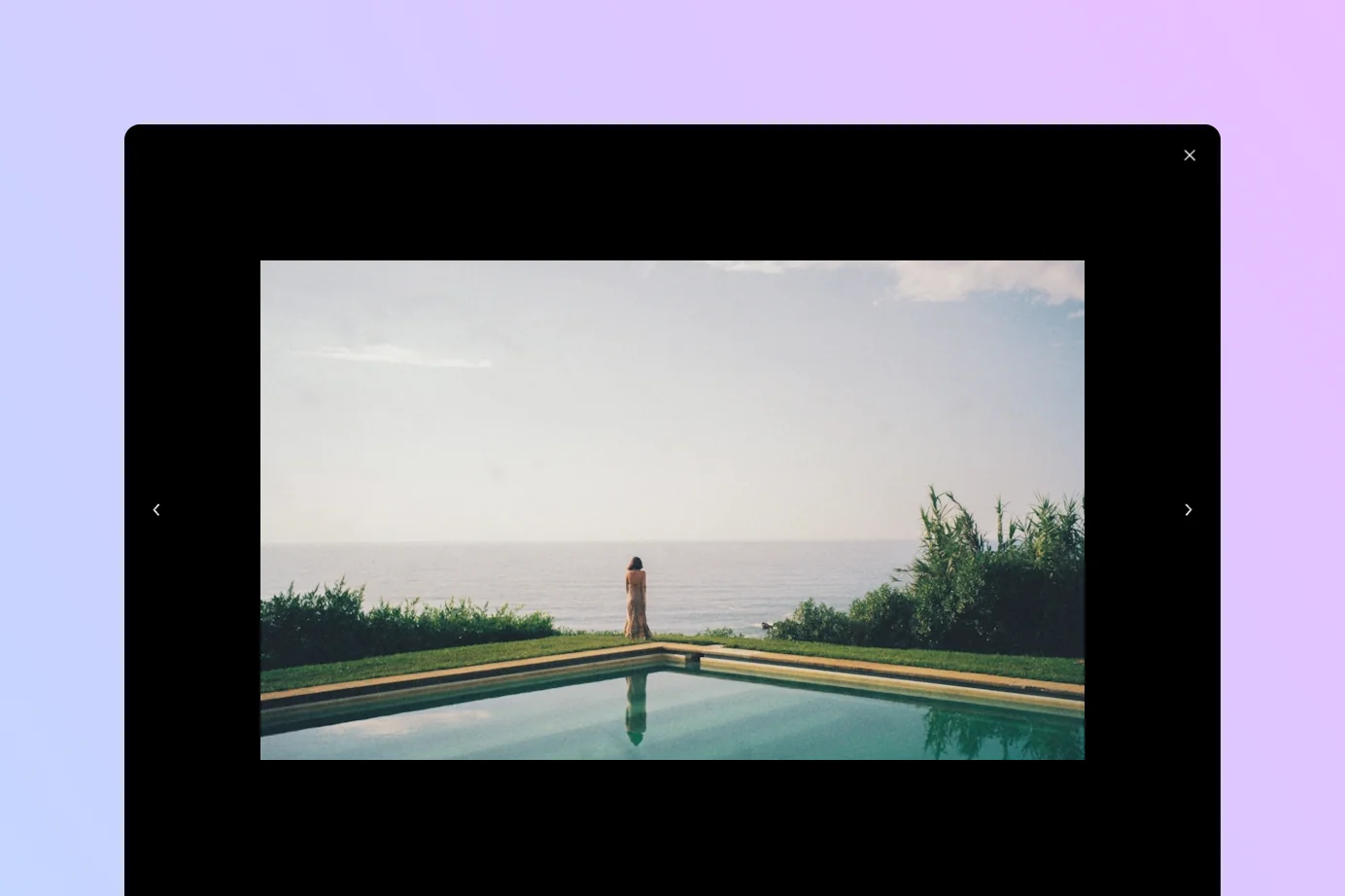
A gallery lightbox lets visitors enlarge images in a full-screen overlay and browse the gallery without closing it. This makes it easier to view photographs, illustrations, product images, and other visual details. WordPress includes a native responsive and accessible lightbox for the Gallery block, so you don’t need to install a separate lightbox plugin. You can enable it for an individual gallery from the Gallery block toolbar or apply it globally through the Site Editor.
How to enable the lightbox on the Gallery block
Enabling the lightbox on an existing gallery takes a few steps:
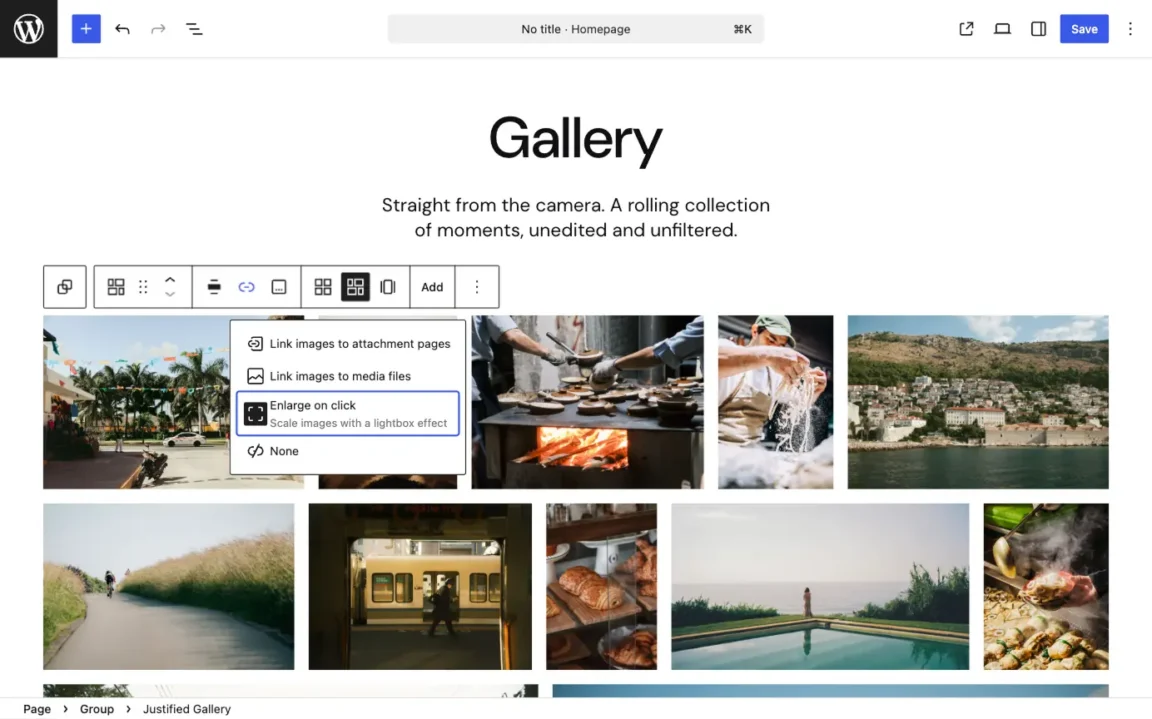
- Select the Gallery block in the editor.
- Open the Link dropdown in the block toolbar.
- Select Enlarge on click.
- Save or publish the page.
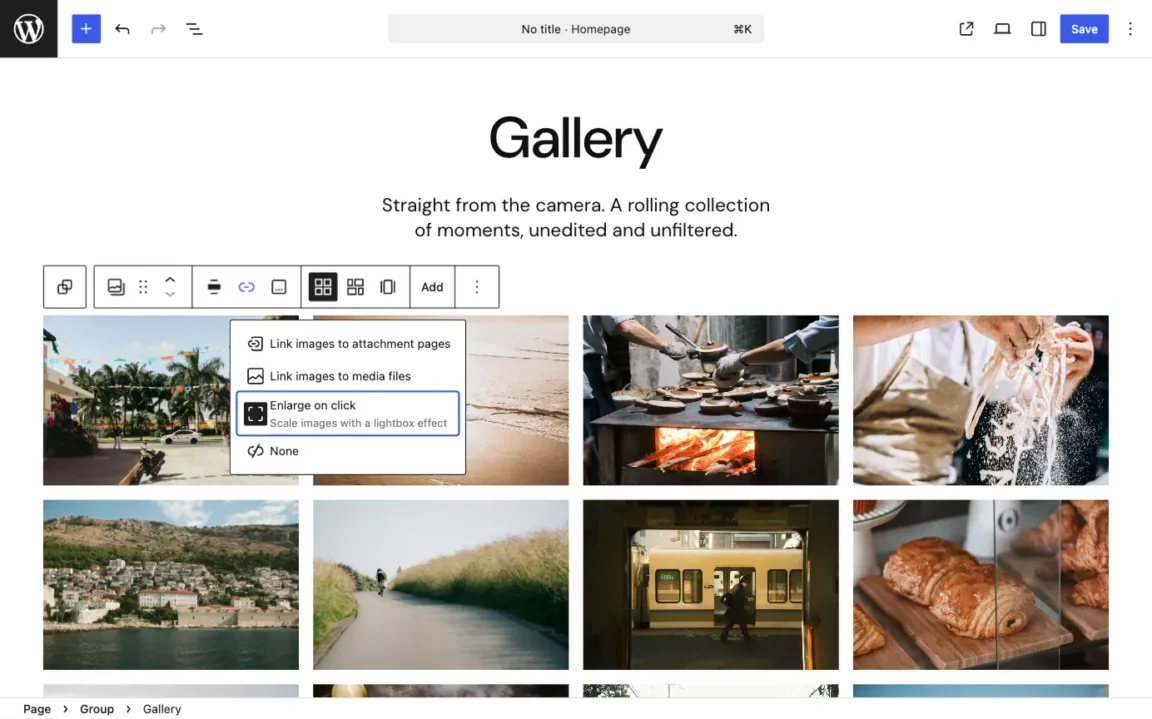
Visitors can now click any image in the gallery to open a larger version in an overlay.
Make sure you have selected the complete Gallery block rather than an individual image inside it. To disable the lightbox later, reopen the Link dropdown and select None or another link option.
Currently, the WordPress core lightbox works with images only. To play a video in an overlay, see how to create a WordPress video lightbox using the Button block.
How to enable the lightbox globally for all images
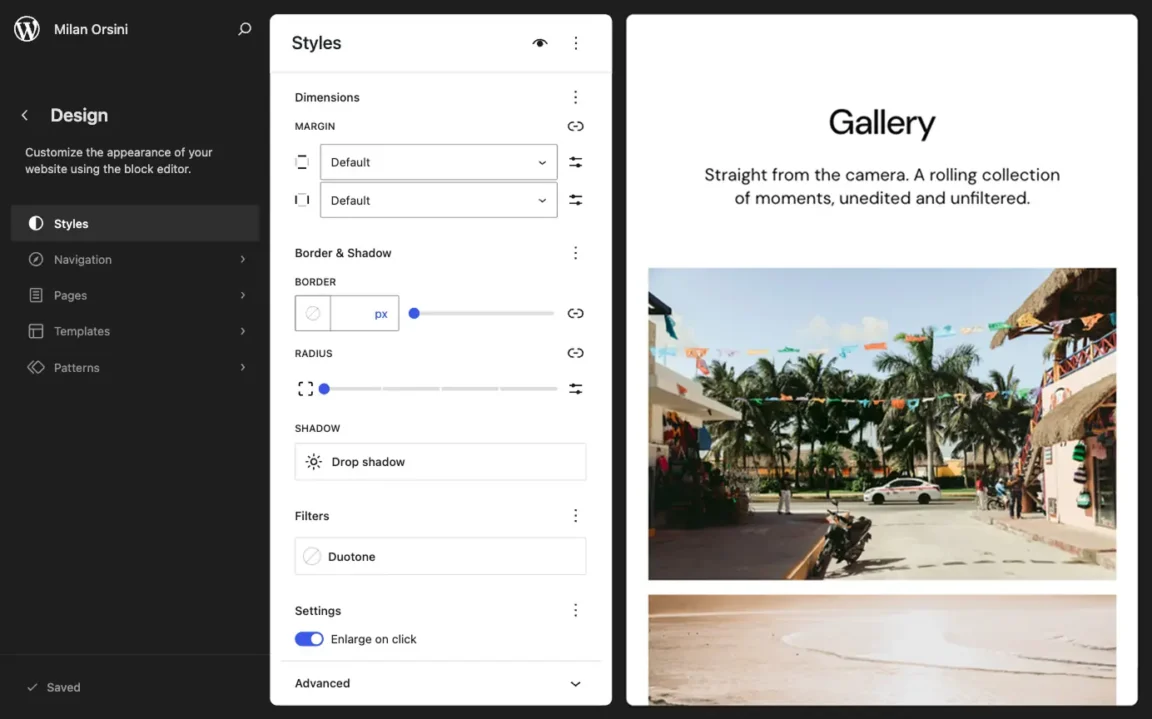
If you want every image on your site to open in the lightbox, you can enable the option globally through the Site Editor. This requires a block theme.
Go to Appearance > Editor > Styles > Blocks > Image, then turn on Enlarge on click.
Because every image inside a Gallery block is also an Image block, this global setting applies to both standalone images and images placed inside galleries.
Navigate between images in the WordPress gallery lightbox
Since WordPress 7.0, the Gallery block lightbox includes previous and next controls, allowing visitors to browse images without closing the overlay after every image.
The navigation is responsive. On larger screens, the controls appear along the sides of the lightbox. On smaller screens, they move to the bottom of the viewport, where they are visible without interfering with the image. Keyboard users can also move between images with the left and right arrow keys.
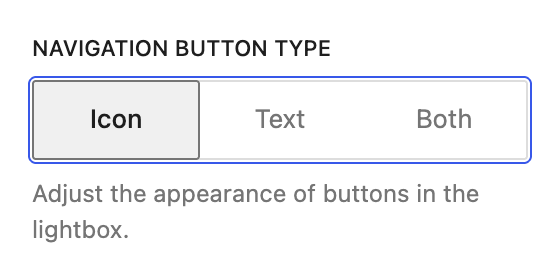
The Gallery block lightbox settings also include a Navigation button type option that lets you choose how the controls are displayed: as icons, text labels, or both.
Swipe gestures are not currently supported on touch devices. A follow-up Gutenberg proposal aims to improve the mobile lightbox with animated swiping, but this functionality is not yet part of WordPress.
How to change the WordPress lightbox colors
By default, WordPress derives the lightbox background and control colors from the theme’s base and contrast colors. If your design calls for something different, such as a dark overlay with light controls, you can override it with CSS.
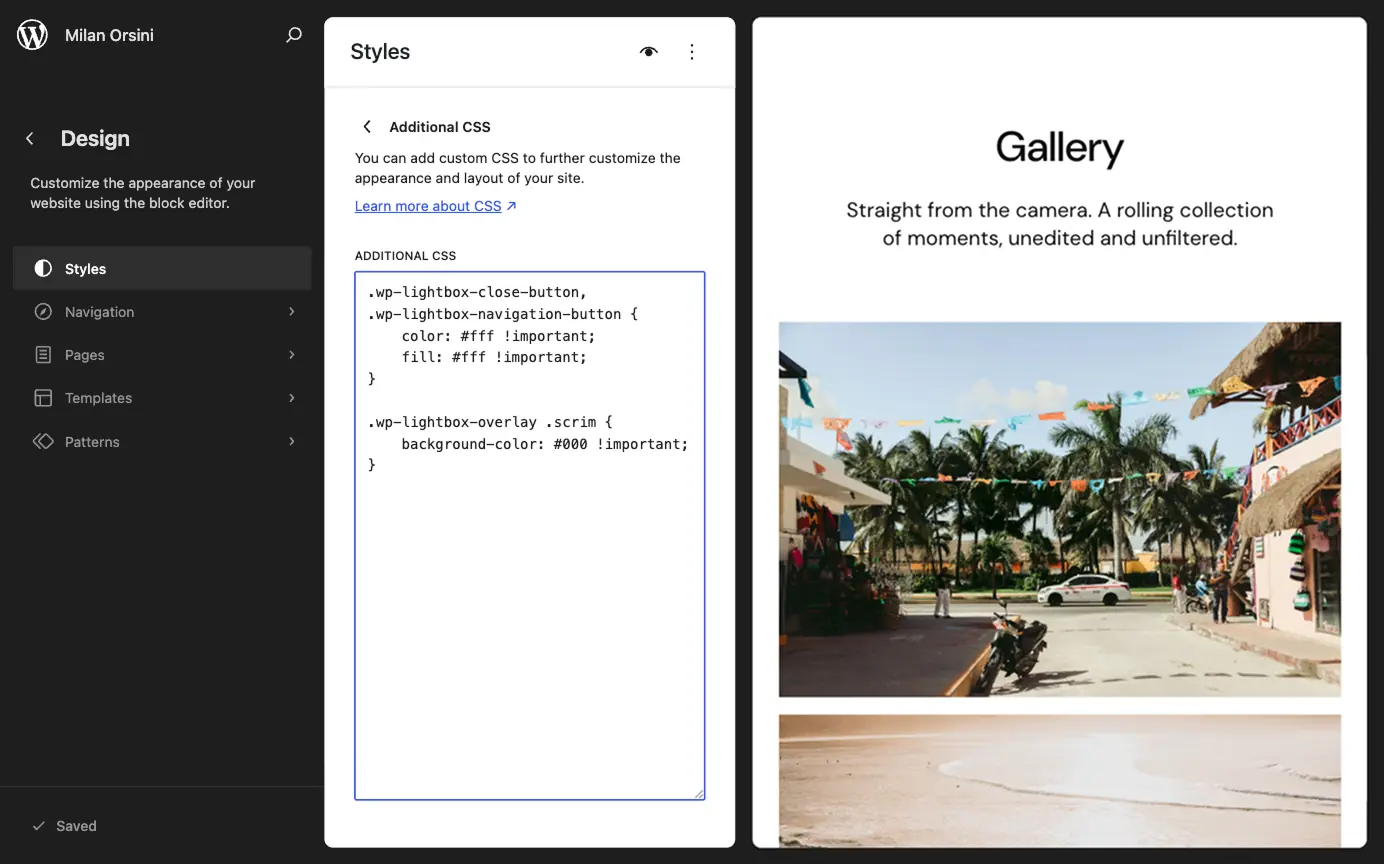
The following CSS example creates a black overlay with white close and navigation controls:
.wp-lightbox-close-button,
.wp-lightbox-navigation-button {
	color: #fff !important;
	fill: #fff !important;
}

.wp-lightbox-overlay .scrim {
	background-color: #000 !important;
}
Add this code to the Additional CSS area: go to Appearance > Editor > Styles, click the three-dot menu, and select Additional CSS. You can also press Ctrl + K (or ⌘ + K on Mac) to open the command palette and type CSS to jump there directly.
The fill property changes the SVG icons used by the close and navigation buttons, while color applies to text-based navigation controls. Replace #fff and #000 with colors that suit your website. Make sure the controls remain clearly visible against the lightbox background.
Pair the lightbox with a justified gallery layout
The WordPress Gallery block lightbox pairs especially well with a justified layout, where every photo is displayed uncropped, so the thumbnail shows the full composition and the transition to the full-size image feels seamless. You can see a live example on our blog starter site.
The free Twentig plugin adds a Justified Gallery variation to the WordPress Gallery block, arranging images in rows of equal height while preserving their original aspect ratios. Learn more in our justified gallery tutorial. Together, Twentig’s justified layout and the built-in lightbox offer a polished way to present image collections with the core WordPress Gallery block.
