
A justified gallery is a layout made famous by Flickr and now widely used on photography websites like 500px and Getty Images. It lets you mix portrait and landscape photos in the same gallery without awkward gaps or cropping.
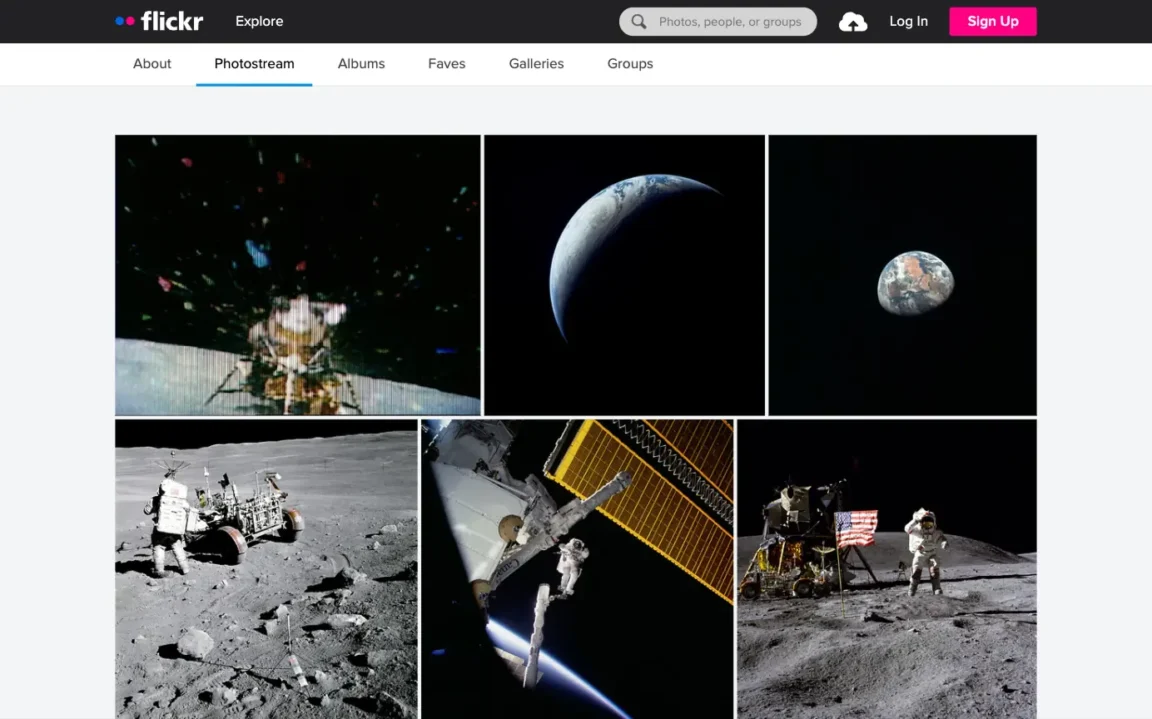
With the Twentig plugin, you can turn any WordPress gallery into a justified gallery directly inside the block editor.
What is a justified gallery?
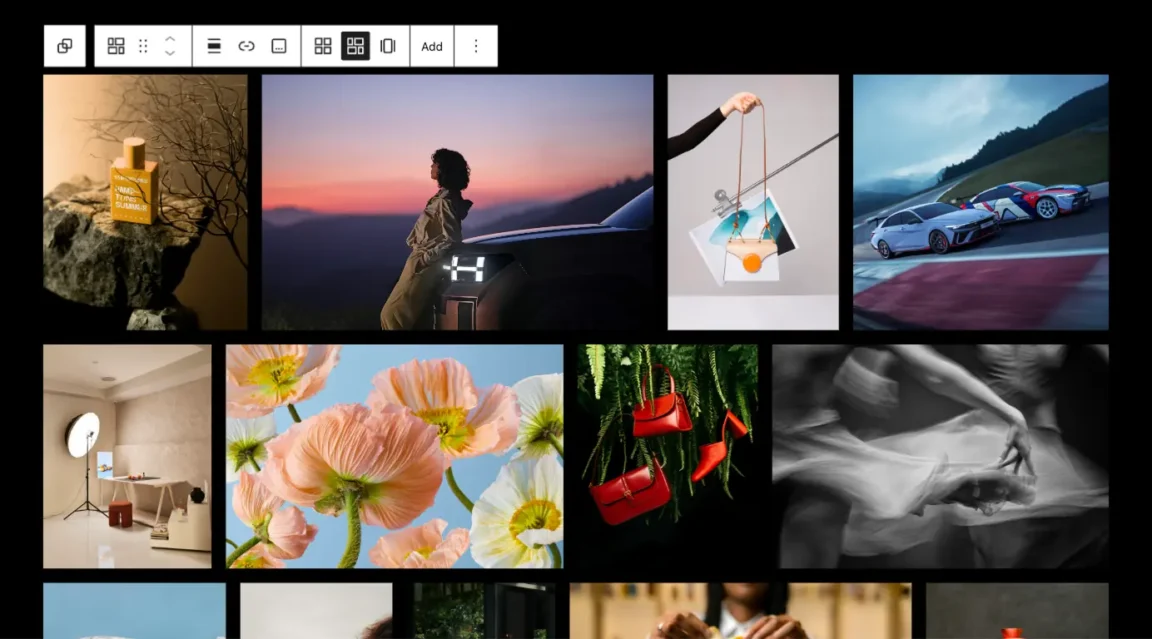
A justified gallery arranges images in rows that all share the same height, while each image keeps its original aspect ratio. The row stretches to fill the full width of the container, with image widths calculated automatically to fit.
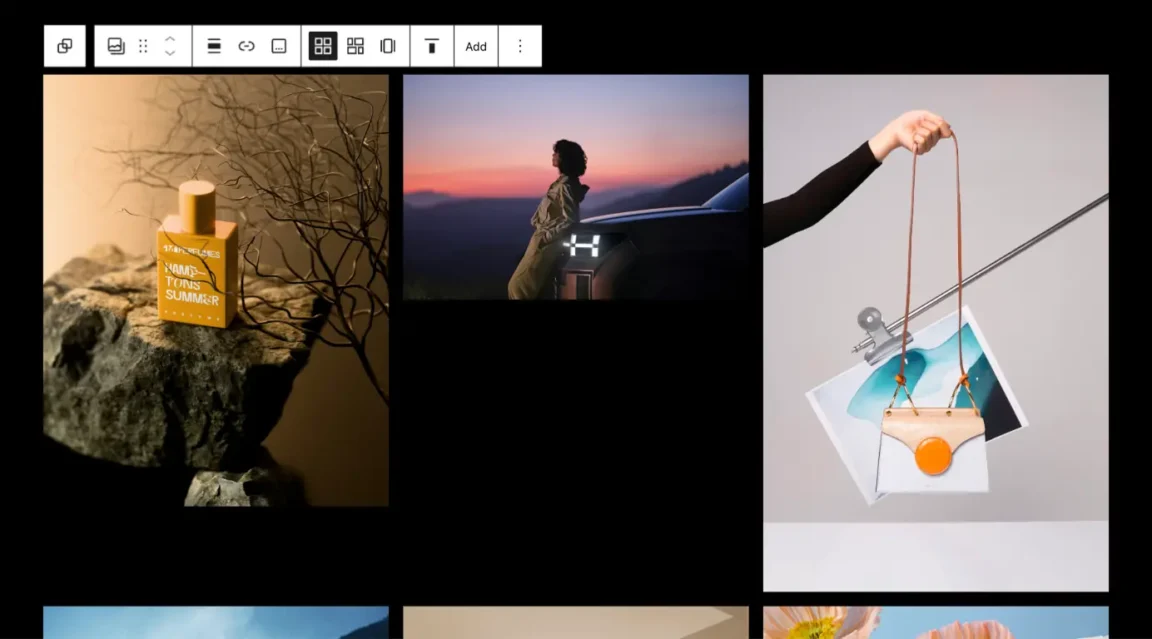
It’s a common choice for photography portfolios because it respects the framing of each shot. The default Gallery block uses a grid layout that either crops your images to keep them uniform, or leaves uneven gaps when the aspect ratios don’t match. A justified gallery does neither: original proportions stay intact, and the rows still align. It also scales well on mobile and gives a more editorial feel than a rigid grid.
How to add a justified gallery in WordPress
First, install the Twentig plugin. Twentig registers the justified gallery as a variation of the core Gallery block, so you can insert a new one or convert any existing gallery directly from the WordPress block editor. There are three ways to create a justified gallery in the block editor.
From the block inserter
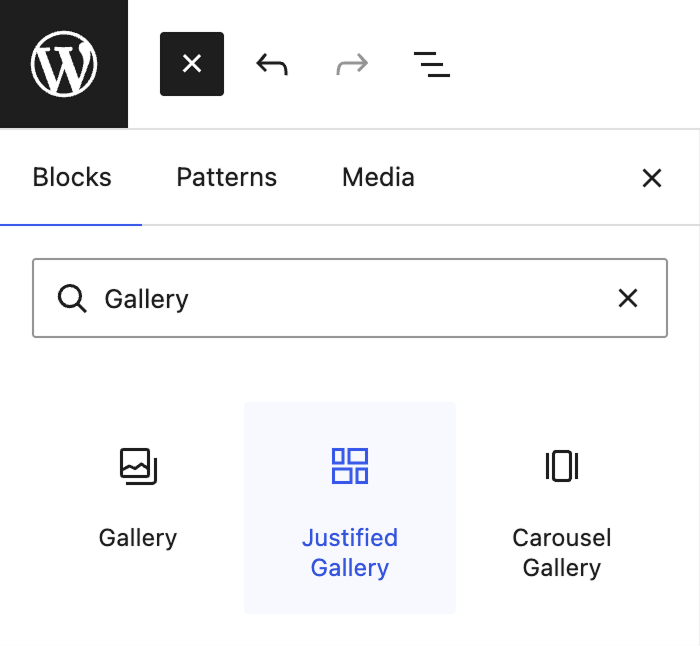
Open the inserter and look for Justified Gallery next to the standard Gallery block, or type “gallery” in the search bar to find it faster.
With the slash command
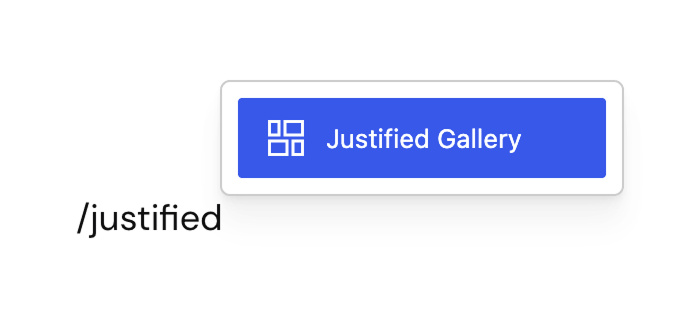
Click in your content where you want the gallery, type /gallery or /justified, then pick Justified Gallery from the dropdown.
From an existing gallery
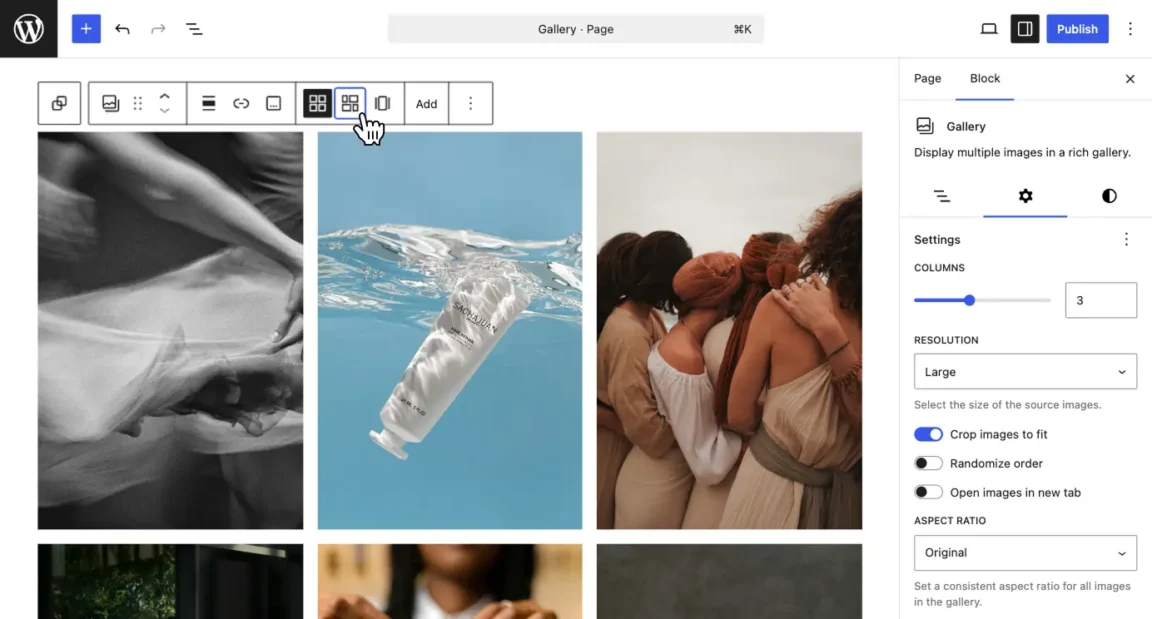
Select any Gallery block, then click the Justified icon in the block toolbar.
Add and manage your images
To add images, click the gallery placeholder and either upload new files from your computer or pick existing ones from the Media Library. You can also drag and drop images directly onto the block. To add more images to an existing gallery, click the Add button in the block toolbar. Once added, you can reorder images by dragging, or remove individual ones using the toolbar that appears when you select an image.
The justified layout shines when your photos vary in aspect ratio, and the order you arrange them in matters too. Alternate portrait and landscape images rather than placing all portraits first and all landscapes after; otherwise, the result will look closer to a regular grid.
Customize your justified gallery
Once your images are in place, the block sidebar lets you control how the rows are laid out.
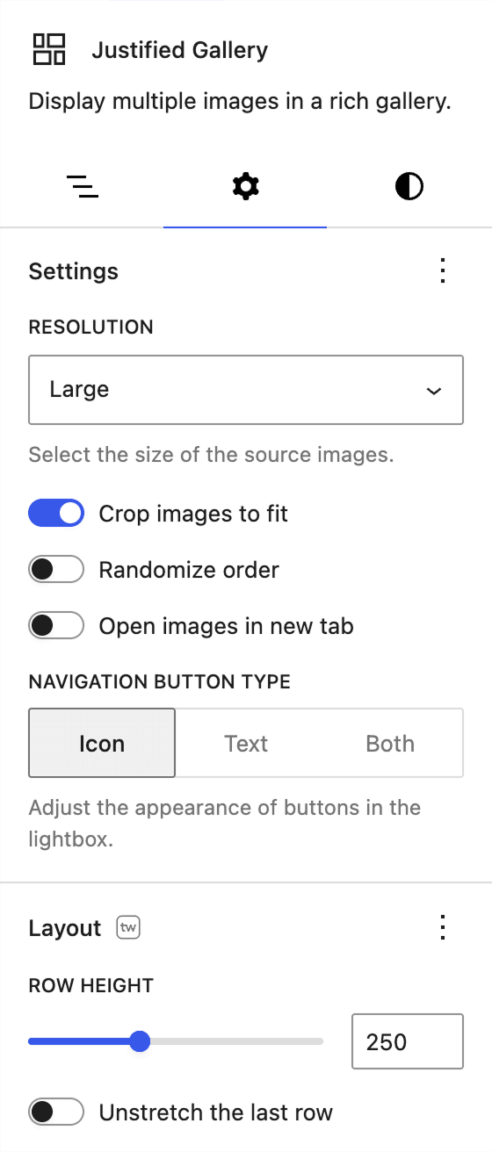
Row height. A slider (default 250px) sets the target height for each row. Actual heights vary slightly so the images fit cleanly across the full width. Smaller values pack more images per row; larger values give each photo more presence. The layout is fully responsive: rows recalculate automatically as the viewport gets narrower, fitting fewer images per row on smaller screens.
Unstretch the last row. By default, the last row stretches to fill the full width like the others, which can enlarge a single trailing image more than you’d like. Toggle this on to leave the final row at its natural size, aligned left.
Crop images to fit. This setting comes from the core Gallery block, but the justified layout uses it differently. Despite the label, your images are not cropped in a justified gallery. With this enabled (default), each row stretches to fill the full container width while staying close to the row height you’ve set. Turn it off to keep every row at the exact row height value, so each row ends wherever the last image fits instead of aligning to the right edge.
Because the justified gallery is a variation of the core Gallery block, it inherits all the standard Gallery settings too: align (none, wide width, full width), block spacing to control the gap between images, image resolution, randomize order, image captions, and the link options.
Enable the WordPress lightbox on your justified gallery
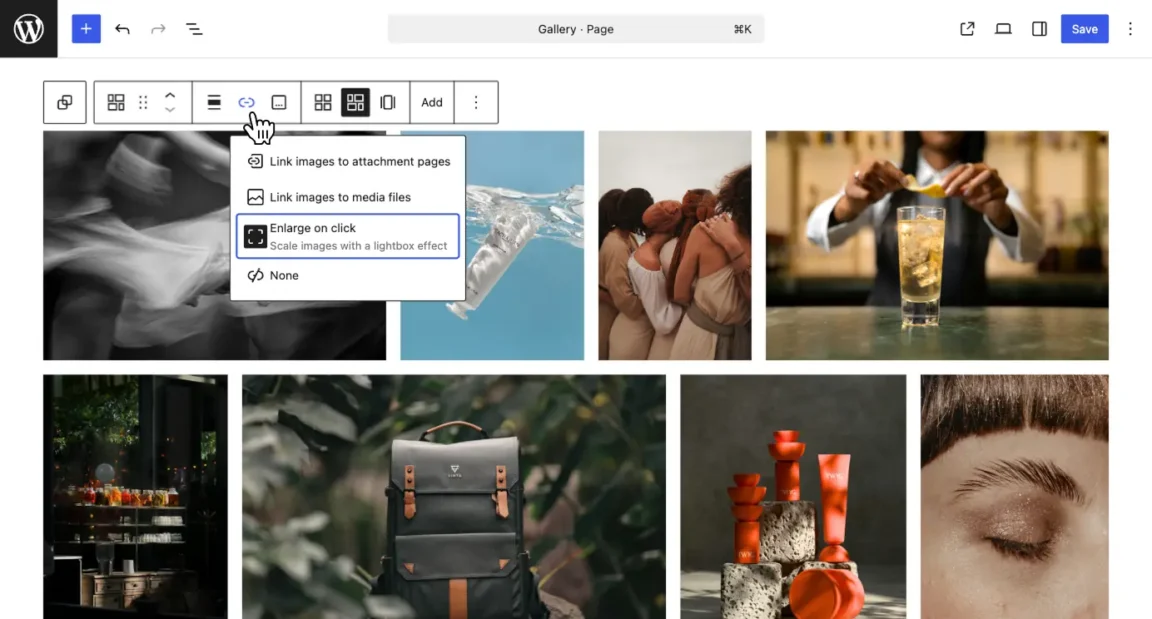
To let visitors view images at full size, enable the built-in WordPress Gallery lightbox. Open the Link dropdown in the block toolbar and select Enlarge on click. WordPress will display each image in a lightbox overlay. No extra plugin needed.
By default, new justified galleries have Enlarge on click enabled. If you transformed an existing grid gallery into a justified one, check the Link dropdown to make sure it’s still set the way you want.
Create beautiful galleries on your WordPress site
Showcase your photos in responsive justified galleries with the free Twentig plugin.
