WordPress Color Palettes

Browse curated WordPress color palettes, with new ones added weekly. Apply them to your site in one click with the Twentig One theme, or use them as inspiration for any block theme.

How to paste a color palette into your WordPress site

Pasting palettes in one click requires the Twentig One theme and Twentig plugin. Choose a palette above and click the copy icon. You can paste it in two places: the Site Editor or the Onboarding Customizer.
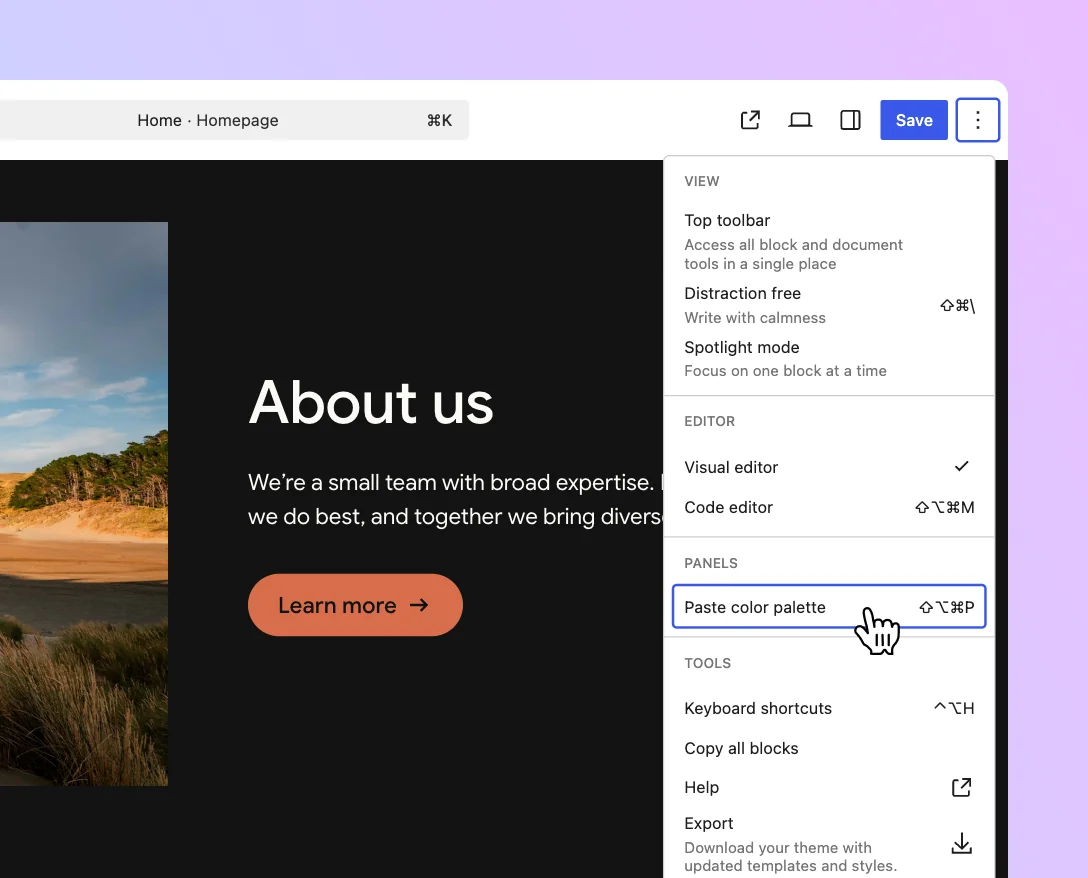
Pasting a WordPress color palette in the Site Editor via the Options menu.

Paste the palette in the Site Editor

In the Site Editor (Appearance > Editor), open the Options three vertical dots icon menu, and click Paste color palette to apply it instantly. Try as many palettes as you like, then click Save when you find one that fits.

Paste the palette in the Onboarding Customizer

When you import a Twentig starter site, the Onboarding Customizer lets you change the palette. Open the Colors panel, then click More palettes and Paste color palette. Preview as many palettes as you like before clicking Finish.
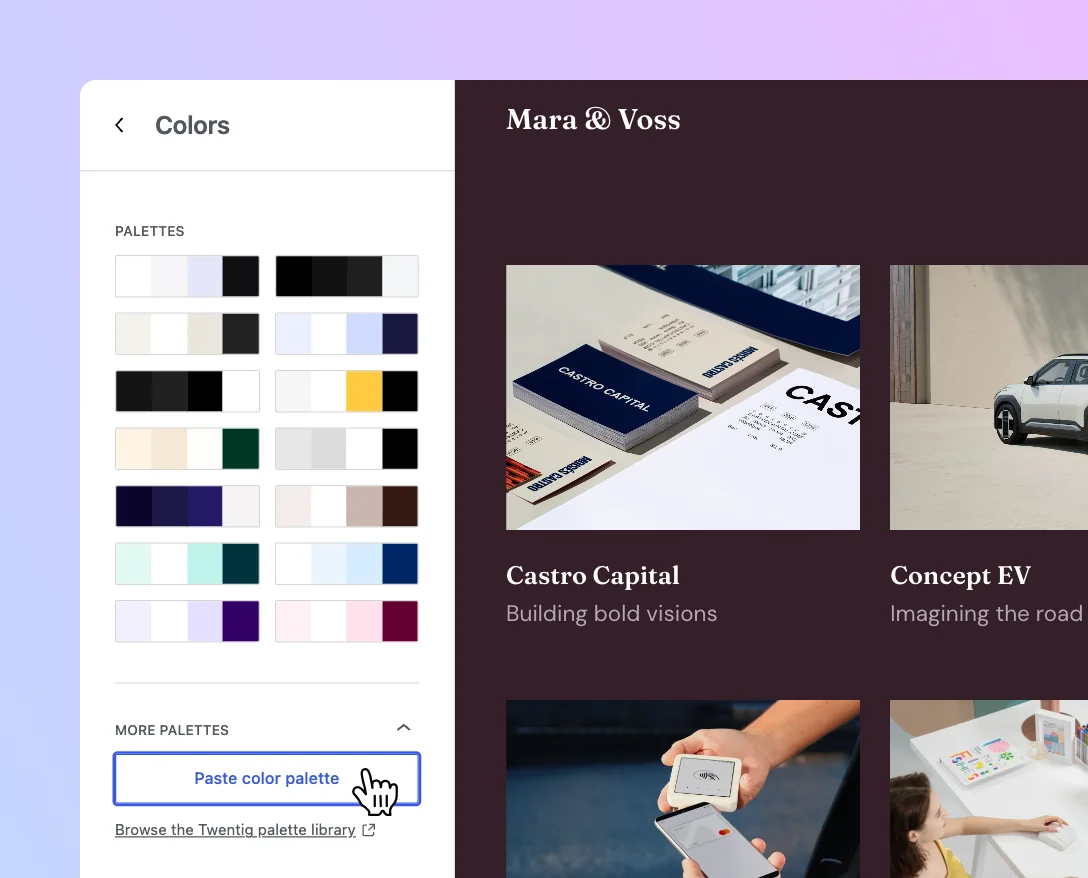
Pasting a WordPress color palette in the Twentig Onboarding Customizer Colors panel.

FAQs

A WordPress color palette is the set of named colors that appear as options throughout the block editor. It controls the default colors available when styling blocks on your site, helping you keep a cohesive design across all your pages. Changing these colors affects every element that uses them.

A consistent color palette makes your site feel intentional and professional. It speeds up design decisions, keeps your branding cohesive across pages, and ensures every button, heading, paragraph, and background pulls from the same harmonious system. Pick from a curated set instead of choosing colors from scratch.

You can change colors manually by going to Appearance > Editor > Styles > Colors > Edit palette. Click any color to open the color picker and enter a new HEX, RGB, or HSL value, then save. Many block themes also include palette presets you can choose from in the Styles panel.

With the Twentig One theme, you can also copy a palette from this page and apply it instantly in the Site Editor. Go to Appearance > Editor, click Options > Paste color palette, or use the keyboard shortcut Ctrl+Shift+Alt+P or ⇧⌥⌘P. No need to enter colors one by one.

In addition to your theme’s color palette, you can build a custom color palette directly in the WordPress Site Editor.

  1. Go to Appearance > Editor > Styles > Colors > Edit palette.
  2. Under Custom, click + to add a new color. Enter a HEX, RGB, or HSL value and name it.
  3. Hit Save. Your custom colors are now available across the block editor.

Twentig One palettes are built around 8 named colors. Here’s how they’re commonly used:

  1. Base: main background
  2. Base 2: secondary background
  3. Base 3: tertiary background
  4. Contrast: main text
  5. Contrast 2: alternative text
  6. Accent: buttons, links, highlights
  7. Secondary: less prominent text
  8. Tertiary: borders and dividers

These are guidelines, not fixed rules. Base, Base 2, and Base 3 can also be used as text colors when Contrast, Contrast 2, or Accent serve as the background.

The first six colors are shown in each palette preview above. The remaining two (Secondary and Tertiary) are automatically generated and included when you copy.

The Copy palette button is designed for Twentig One. It copies all colors in the exact format the theme expects, ready to paste in one click. That said, each individual color value is also copyable, so you can use any palette as inspiration or reference for other themes too.

Every palette on this page has been tested to ensure key color combinations pass WCAG AA contrast requirements. In each palette, the first three colors (Base, Base 2, and Base 3) are legible with the fourth, fifth, and sixth colors (Contrast, Contrast 2, and Accent), and vice versa. That gives you a flexible, accessible color system without guesswork.

Yes. You can browse, copy, and use these palettes for free.

Customize your WordPress site faster with Twentig

Give back to Twentig

If Twentig helped you build a website, please support us. Every donation makes Twentig better!