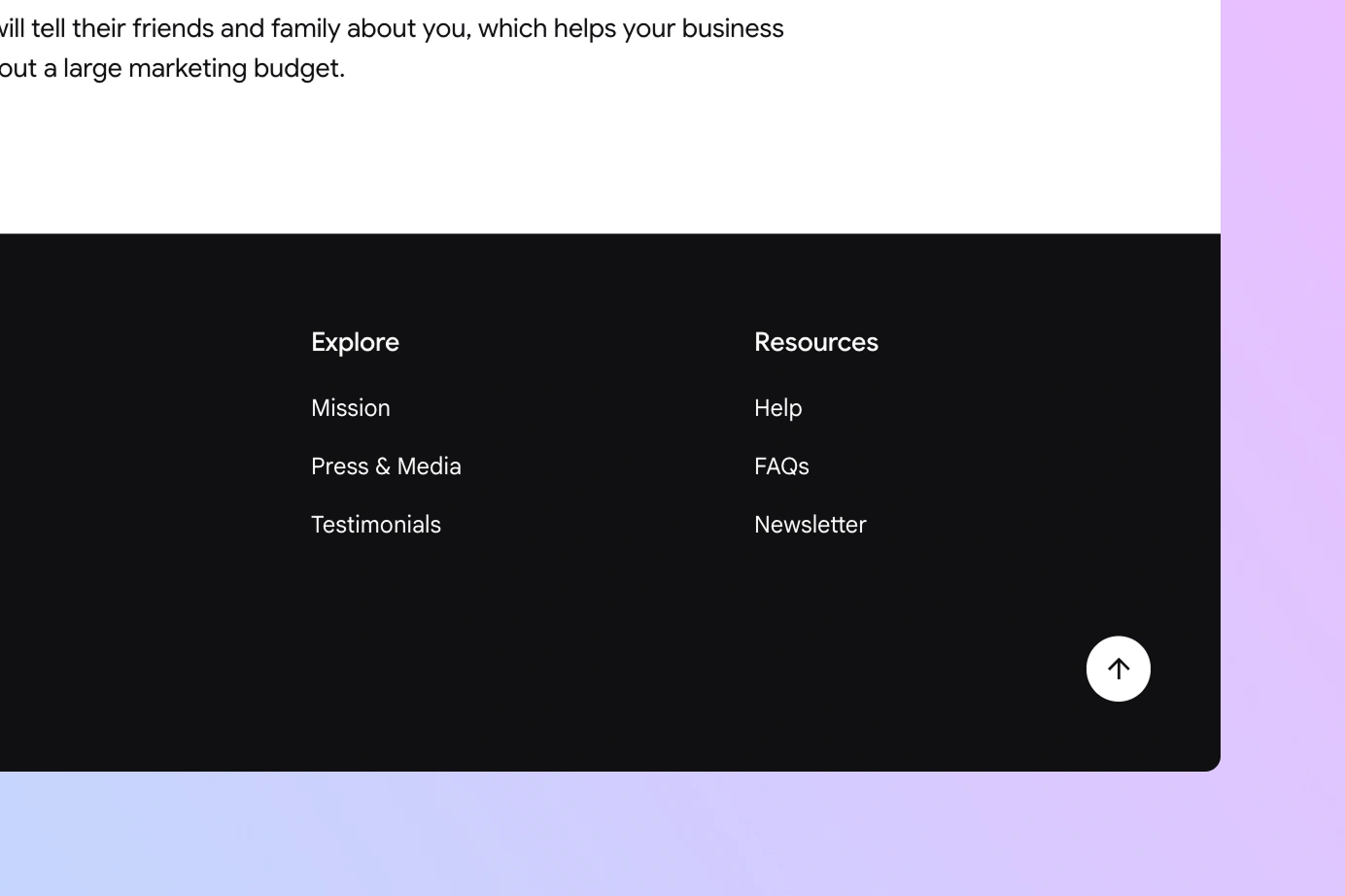
On long pages, a back to top button makes it easier for your visitors to return to the beginning, particularly on mobile. In this tutorial, we’ll explain how to add a back to top button in WordPress without installing a plugin or editing PHP or JavaScript files. We’ll use the core Button block in either a block theme or a classic theme, then show you how to enable smooth scrolling and make the button float as visitors scroll.
Add a back to top button in a WordPress block theme
To show the back to top button on every page of your site, add it to your Footer template part instead of inserting it into individual pages.
- In your WordPress dashboard, go to Appearance > Editor.
- Open Patterns > Template Parts, then select Footer.
- Insert a Buttons block, which includes a Button by default.
- Type a clear label, such as “Back to top”.
- Select the Button, click the link icon in its toolbar, and enter
#topas the URL. - Save the footer and test the link on a long page.
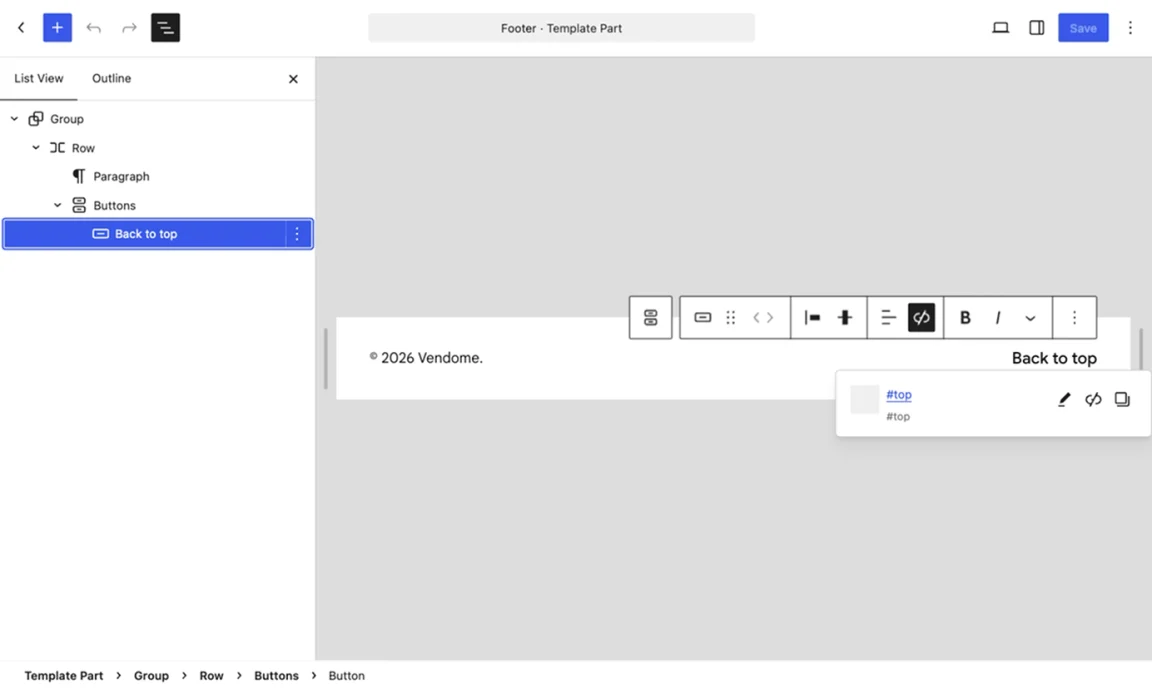
You don’t need to create a top anchor: if none exists, the browser treats #top as a link to the top of the page. The shorter # works too, but #top makes the link’s purpose clearer in the editor.
The linked Button block uses a native HTML link, so keyboard users can focus it and press Enter to return to the top.
For a simpler option, add a Paragraph block instead. Type a label such as “Back to top,” select the text, and link it to #top.
Add a back to top button in a WordPress classic theme
If your classic theme has a footer widget area and uses the block-based Widgets editor, you can add a back to top button there:
- Go to Appearance > Customize > Widgets and open the Footer widget area.
- Insert a Buttons block, enter a label such as “Back to top”, and link the Button to
#top. - Click Publish, then test the link on a long page.
You can also use a linked Paragraph block instead.
Customize your back to top button
You can use the Button block’s Fill or Outline style, or another style provided by your theme. You can also adjust its font settings, colors, padding, and border radius to suit your footer. A plain text link works well when you want a quieter option.
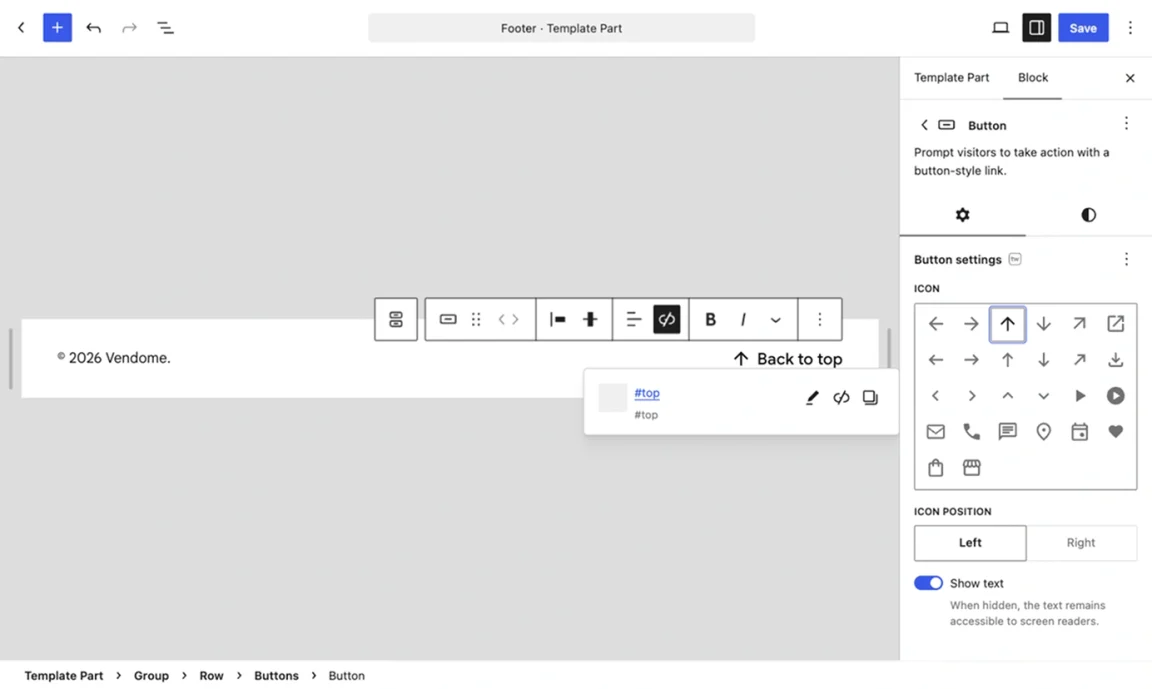
If you use the Twentig plugin, you can add an up arrow or up chevron in the Button block’s Icon settings.
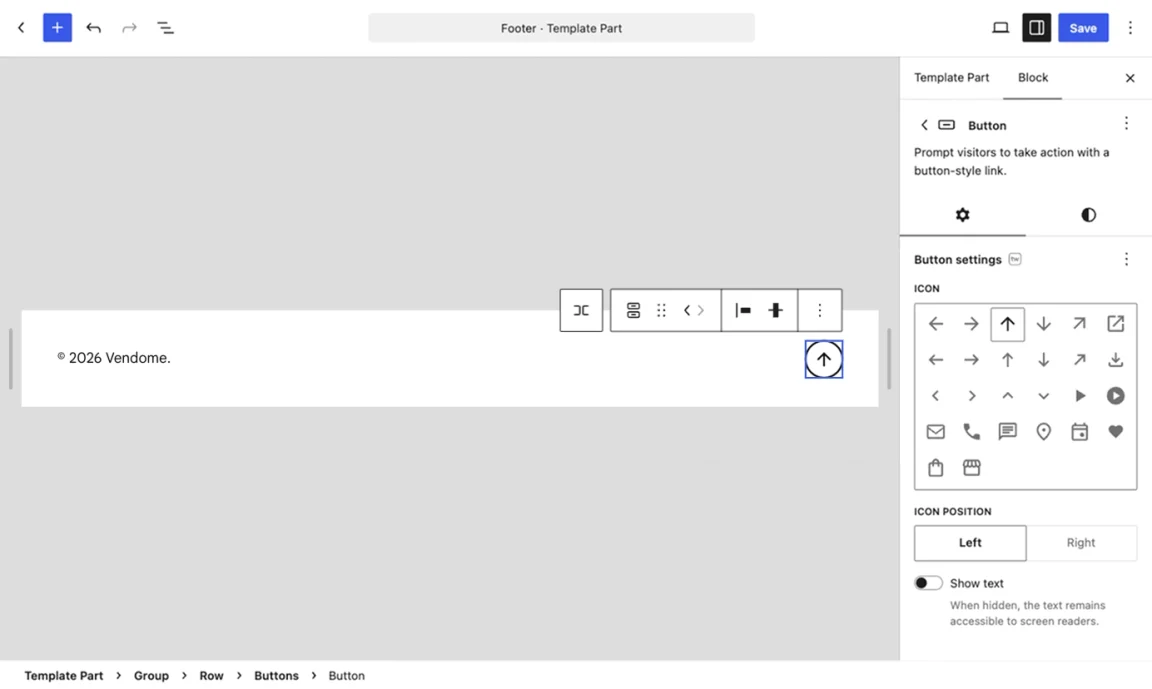
For an icon-only button, turn off Show text. Keep a descriptive label such as “Back to top”. Twentig hides the text visually but retains it for screen readers.
Enable smooth scroll to top in WordPress
Depending on your theme’s styles, the link may jump to the top instantly or scroll smoothly. If it jumps, add this CSS for a smooth scroll to top effect:
@media (prefers-reduced-motion: no-preference) {
    html {
        scroll-behavior: smooth;
    }
}
If you use a block theme, add the rule in the Site Editor’s Additional CSS panel:
- In your WordPress dashboard, press Ctrl+K (Cmd+K on Mac), search for Open custom CSS, and select it.
- Paste the CSS above into the Additional CSS field, then click Review change and Save.
If you use a classic theme, add the CSS in the Customizer:
- Go to Appearance > Customize > Additional CSS.
- Paste the CSS above and click Publish.
This CSS rule affects in-page links across the site, not just the scroll to top button. The prefers-reduced-motion query keeps scrolling instant for visitors who’ve requested reduced motion.
Make a floating back to top button
You can keep the Button block in your footer and make it stay fixed in the lower-right corner as visitors scroll. Select the Button block, then add back-to-top-floating under Advanced > Additional CSS Class(es). Add the following CSS using the Additional CSS steps for your theme above:
.wp-block-button.back-to-top-floating {
	position: fixed;
	right: 16px;
	bottom: 16px;
	z-index: 100;
}

@keyframes reveal-back-to-top {
	from {
		opacity: 0;
		visibility: hidden;
	}
	to {
		opacity: 1;
		visibility: visible;
	}
}

@supports (animation-timeline: scroll(root)) and (animation-range: 200px 240px) {
	.wp-block-button.back-to-top-floating {
		animation: reveal-back-to-top 1ms linear both;
		animation-timeline: scroll(root block);
		animation-range: 200px 240px;
	}
}
In browsers that support scroll-driven animations, the button starts appearing after 200 pixels of scrolling and is fully visible at 240 pixels. It hides again when visitors scroll back to the top. In other browsers, it remains fixed and visible from the start.
You can adjust right and bottom to place the button where you like, and change the animation-range values to choose when it appears.
Do more with the WordPress block editor
Add icons to your buttons and explore more design options with the free Twentig plugin.
