The WordPress block editor gives you visual controls for typography, color, spacing, and layout, but sometimes you need a style that no setting offers. Maybe you want your buttons to lift on hover, gradient text on a few key headings, or custom bullet markers on one particular list. That’s where custom CSS comes in.
This guide shows you how to add custom CSS in WordPress using the block editor and a block theme. It covers four ways, from site-wide rules to per-block styling introduced in WordPress 7.0. Developers have other routes, like theme.json or a child theme stylesheet, but those mean editing files. All four methods below live in the Site Editor or block inspector, with no files to touch.
The four levels of custom CSS in WordPress block themes
Each level targets a different scope, from your whole site down to a single block:
- Site-wide CSS through the Additional CSS field in Global Styles. Best for general rules that apply across your entire site.
- Block-type CSS through Global Styles. Best when you want every Button, every Heading, or every Quote to share the same custom styles.
- Reusable classes defined in the site-wide Additional CSS field and applied to individual blocks through the Additional CSS class(es) field. Best when you want to apply the same custom styling to selected blocks, like adding gradient text to only certain headings.
- Per-block CSS through the Advanced panel of the block inspector. Best for one-off tweaks to a specific block on a specific page.
Let’s walk through each method.
1. Add site-wide custom CSS in a block theme
Site-wide CSS is the right choice for styles that aren’t tied to a particular block. Common use cases include link treatments, text selection colors, and structural tweaks like turning your site into a boxed layout.
To add it:
- Go to Appearance → Editor in your WordPress dashboard to open the Site Editor.
- Click Styles in the left sidebar.
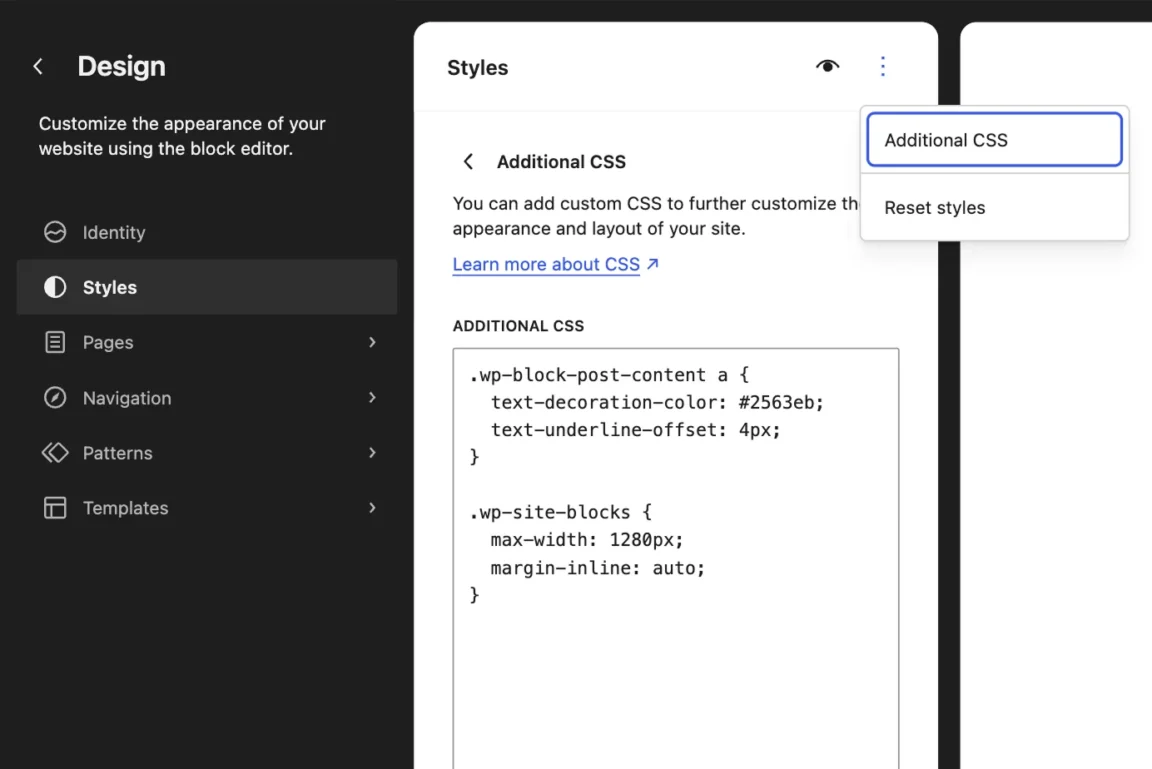
- Open the three-dot menu at the top of the Styles panel and select Additional CSS.
- Add your CSS into the field.
- Click Review change then Save.
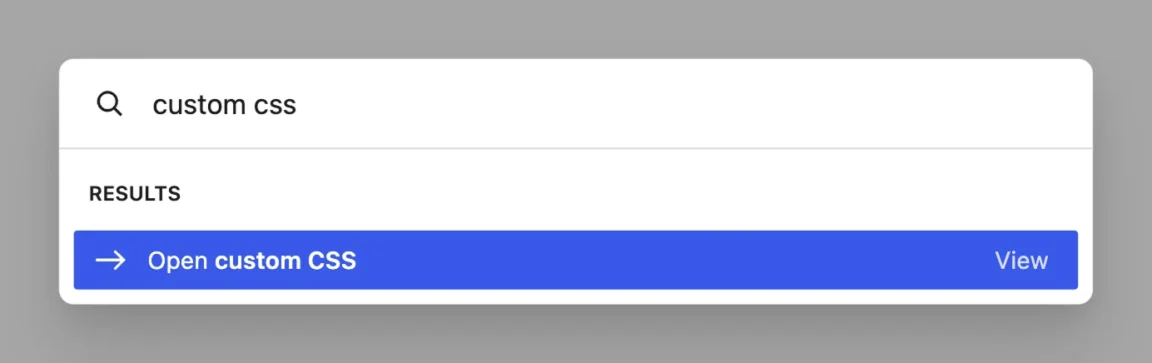
There’s also a shortcut: press Ctrl+K (Cmd+K on Mac) to open the Command Palette, then start typing “custom CSS” and pick Open custom CSS. It works from anywhere in the WordPress admin and takes you straight to the field.
For example, this rule customizes the appearance of all links inside the main content area:
.wp-block-post-content a {
  text-decoration-color: #2563eb;
  text-underline-offset: 4px;
}
And this rule turns the entire site into a boxed layout by capping the width of the outer wrapper around your page’s blocks:
.wp-site-blocks {
  max-width: 1280px;
  margin-inline: auto;
}
2. Add custom CSS to a block type in Global Styles
If you want to target every instance of a specific block type, you can write CSS for it directly in Global Styles. Say you want every Button on your site to have a subtle hover lift. Block-type CSS handles this without touching individual blocks.
To add it:
- Open Appearance → Editor → Styles.
- Click Blocks in the Styles panel.
- Select the block you want to style (for example, Button).
- Scroll to the bottom of the block’s style panel and open Advanced.
- Add your CSS declarations in the Additional CSS field.
- Click Review change then Save.
You don’t need a selector. WordPress automatically scopes the rules to the block. You can use the & symbol to write nested selectors that target elements inside the block. For instance, on the Button block:
transition: transform 0.2s ease;

&:hover {
  transform: translateY(-2px);
}
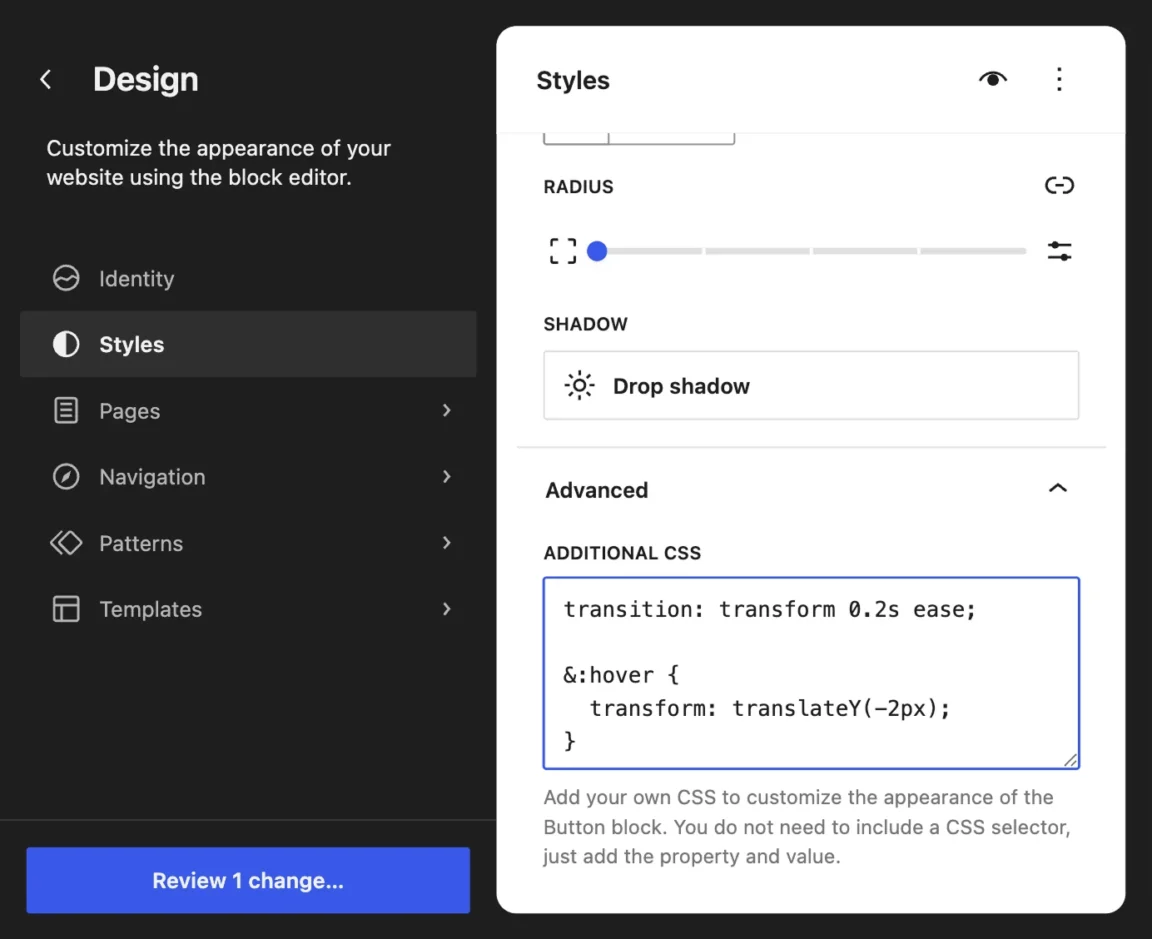
These styles will apply to every Button block across your site, layered on top of the theme’s defaults and any settings you’ve configured in Global Styles.
One caveat: media queries don’t work in block-type Additional CSS. The generated CSS comes out broken, so your rules may not apply at all, or may apply at every screen size. It’s a known bug, but until it’s fixed, put responsive rules in the site-wide Additional CSS field.
3. Reuse custom CSS with a class
When you want a specific look on a hand-picked subset of blocks rather than every block of a type, custom classes are the right tool. You define a class once in the global Additional CSS and apply it to as many blocks as you need. A common pattern is a gradient-text class you can drop onto selected Headings, leaving the rest of your headings untouched.
The workflow has two steps.
First, define the class in the site-wide Additional CSS field. Press Ctrl+K (Cmd+K on Mac), search for Open custom CSS, and add a rule like this:
.gradient-text {
  background: linear-gradient(90deg, #7c3aed, #db2777);
  -webkit-background-clip: text;
  background-clip: text;
  color: transparent;
}
Then, assign the class to any block you want to style:
- Select the block in the page or site editor.
- Open the Advanced panel in the block inspector.
- Enter
gradient-textin the Additional CSS class(es) field. - Hit Save (or Publish if it’s a new page).
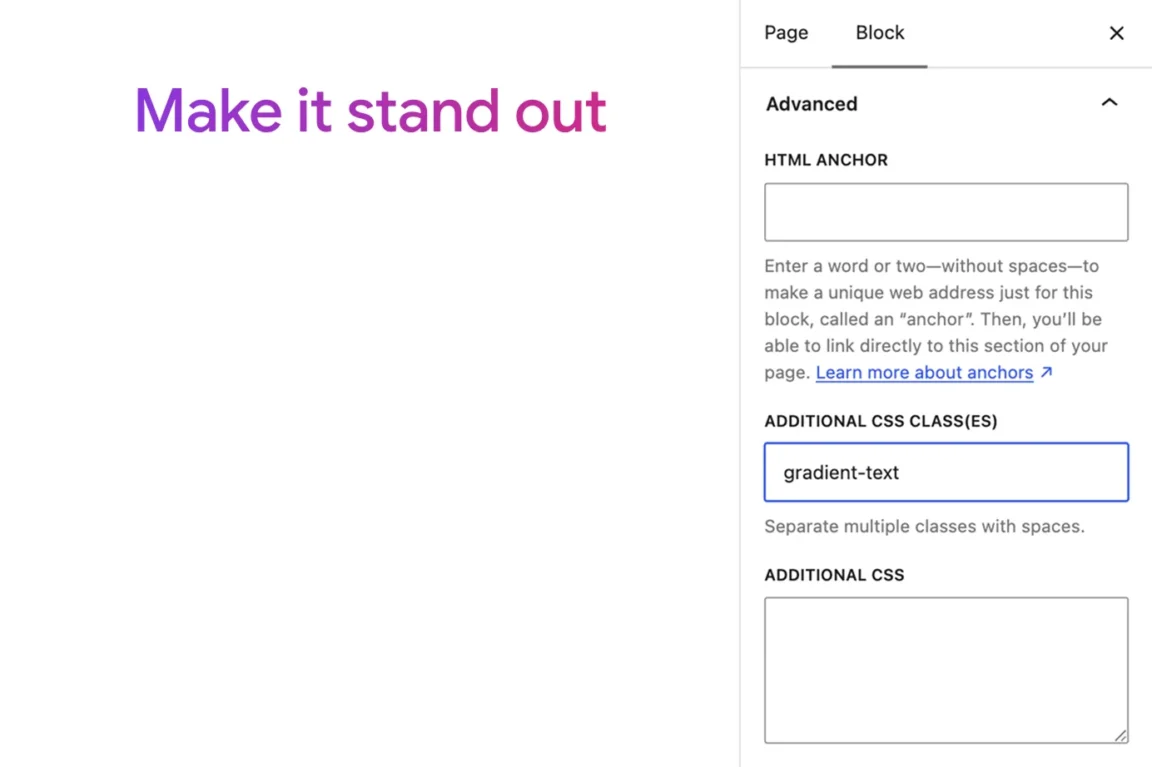
Update the rule once in the site-wide Additional CSS field and every block using the class reflects the change. You can also assign multiple classes to a single block by separating them with spaces.
Classes work well when you’re building a small library of reusable styles: gradient text, decorative underlines, custom hover effects. They also help when you’re collaborating with editors who shouldn’t write CSS but can paste a class name into a field.
4. Add custom CSS to one specific block
Before WordPress 7.0, applying one-off CSS to a single block meant defining a class in Additional CSS first. Since 7.0, you can apply custom CSS directly to one specific block, right from the block editor.
To use it:
- Edit any post, page, or template.
- Select the block you want to style.
- In the block inspector on the right, open the Advanced panel.
- Find the Additional CSS field.
- Write your CSS declarations.
As with block-type CSS, you don’t need a selector. WordPress gives that specific block a unique class and scopes your rules to it. You can use & to target elements inside the block. For example, on a List block you want to stand out:
& li::marker {
  color: #3740b9;
}
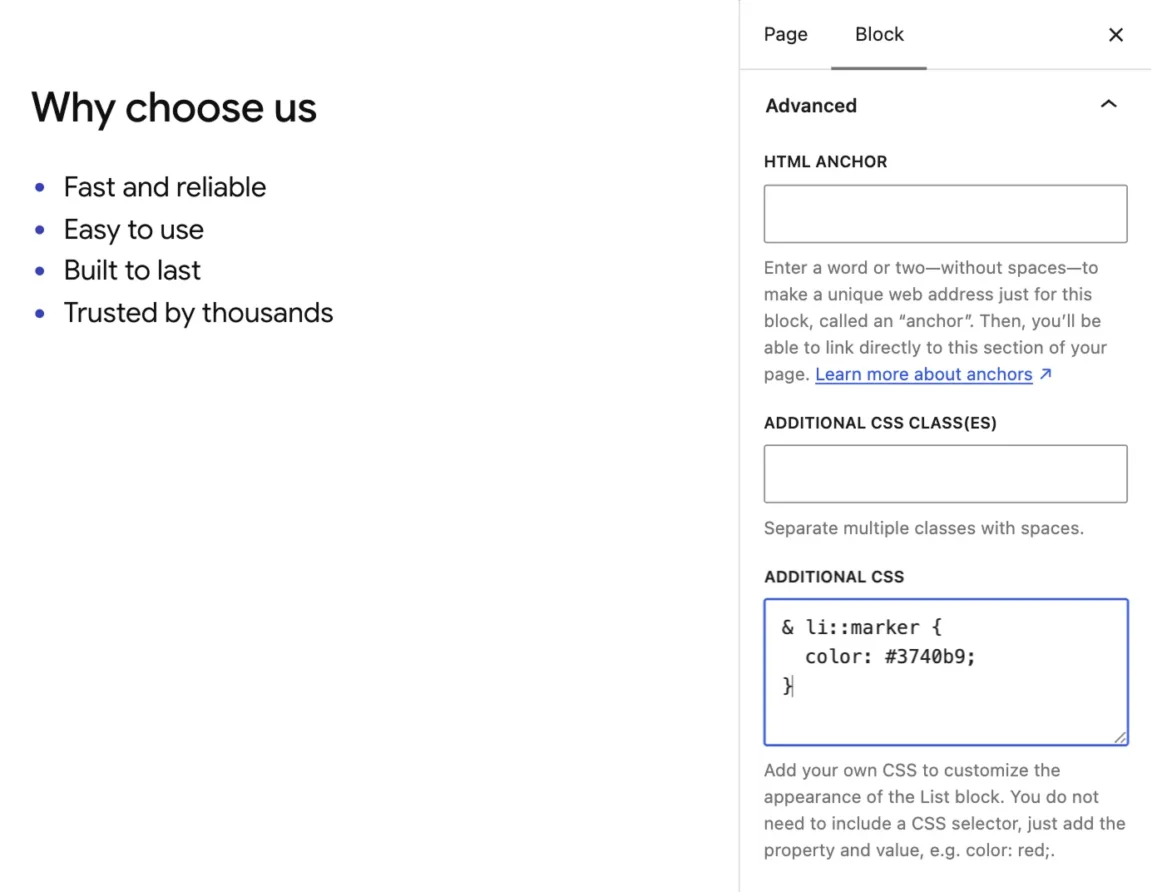
WordPress loads this CSS after Global Styles, so it overrides both WordPress defaults and any block-type CSS you’ve defined. Changes are reflected in the editor immediately, before you save.
The same media query limitation applies here. Keep responsive rules in the site-wide Additional CSS field.
How the four methods work together
You can mix all four. Custom CSS in the WordPress block editor counts as user styles, which take precedence over the defaults your theme sets through theme.json. Within that, per-block CSS loads after Global Styles, so it wins over site-wide and block-type rules when they conflict. For everything else, standard CSS specificity applies.
Take it further with Twentig
If you’d rather avoid writing CSS for common design needs, Twentig gives you built-in controls for things that usually require custom code: sticky headers, transparent headers, gradient text, animations, advanced typography, and more. The Twentig plugin and Twentig One block theme work together, letting you build visually and reserve custom CSS for the cases that need it.
FAQ
Where is the Additional CSS field in a block theme?
Go to Appearance → Editor to open the Site Editor, then click Styles. Open the three-dot menu at the top of the Styles panel and select Additional CSS. Or press Ctrl+K (Cmd+K on Mac) from anywhere in the WordPress admin, type custom CSS and select Open custom CSS.
Can I add custom CSS to a single block in WordPress?
Yes. Since WordPress 7.0, most core blocks have an Additional CSS field of their own. Select the block, open the Advanced panel in the block inspector, and write your declarations there. No selector needed, and the styling applies to that block only.
Why don’t I see the Additional CSS field on my block?
First check your WordPress version: per-block custom CSS requires WordPress 7.0 or later. If that’s not the problem, the field is gated by the edit_css capability. Administrators have it by default. Other roles need the capability granted explicitly.
Does custom CSS work in the classic editor?
Custom CSS depends on your theme rather than your editor. Classic themes provide Additional CSS through the Customizer, while block themes use the Styles panel in the Site Editor described above. This guide covers the block theme methods.
Will my custom CSS survive a theme switch?
Global Styles are saved per theme, so site-wide and block-type CSS won’t carry over to a new theme. Your CSS stays in the database, so switching back restores what you had. Per-block CSS lives in the block markup itself, so it travels with the content regardless of theme.
Do more with the WordPress block editor
Get advanced design controls with the free Twentig plugin and Twentig One block theme.
