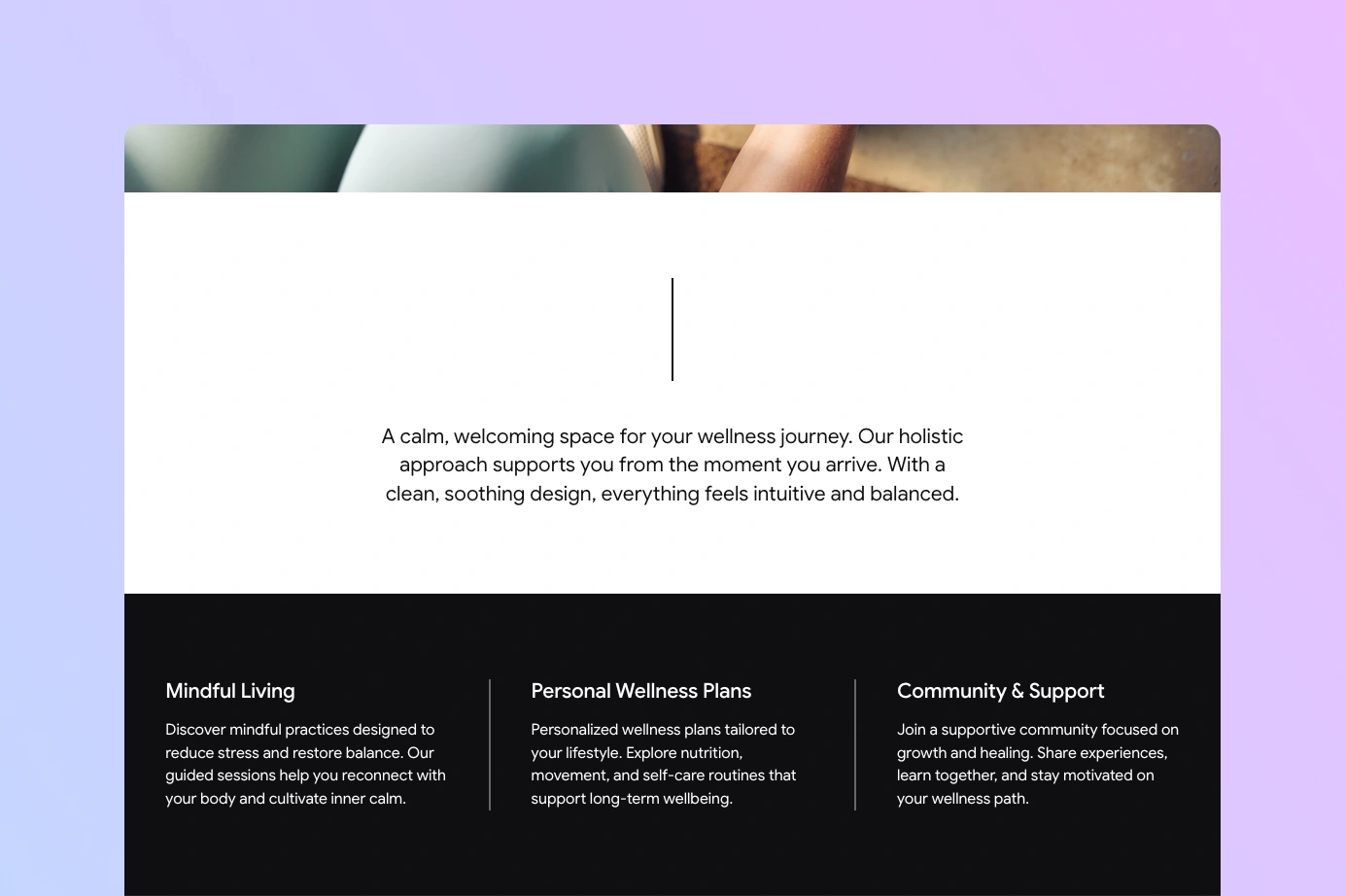
The WordPress separator block is one of those deceptively simple elements that can do a lot more than it first appears. Whether you want a clean separator line to break up a long post, control separator thickness, create a vertical separator, or save your design as a reusable pattern, this guide shows you how to do it all in the WordPress block editor with the extra options available in the Twentig plugin.
Table of contents
- What is the WordPress Separator block?
- Separator markup: <hr> or <div>?
- Customize the WordPress Separator style, width and thickness
- How to create a WordPress vertical separator
- WordPress separator line with text
- Add animation to your separator
- Hide the separator on specific devices
- Save your custom separator as a reusable pattern
What is the WordPress Separator block?
The Separator block creates a horizontal line (an <hr> element by default) between two sections of content. It’s perfect for signaling a shift in topic, separating a header from body copy, or adding a decorative visual rhythm to your page.
To insert one in the block editor, click the Block Inserter (+) and search for Separator. Or type /separator in a new paragraph block and press Enter for a quick shortcut.
Separator markup: <hr> or <div>?
Before customizing your separator, it’s worth understanding the HTML behind it, because it affects accessibility and the semantics of your content.
By default, WordPress renders the Separator block as an <hr> element. The W3C defines <hr> as a paragraph-level thematic break, a signal that the topic or narrative is shifting. If your separator actually serves that purpose, <hr> is the right choice.
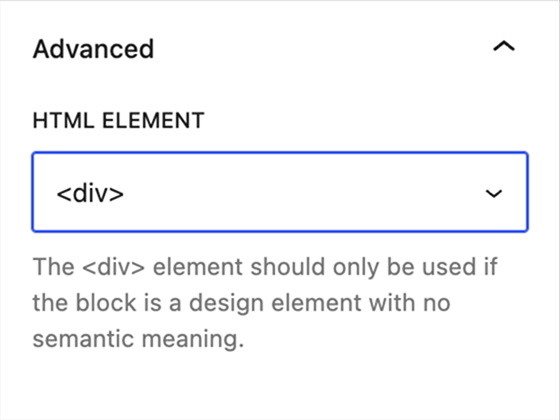
But if you’re using the separator purely as a decorative design element, switch to a <div>, which carries no semantic weight. Screen readers won’t announce it unnecessarily, and your HTML will be cleaner. This is especially relevant for vertical separators and purely stylistic lines.
To change the element:
- Select your Separator block.
- Open the Advanced panel in the block settings sidebar.
- Under HTML Element, switch
hrtodiv.
Customize the WordPress Separator style, width and thickness
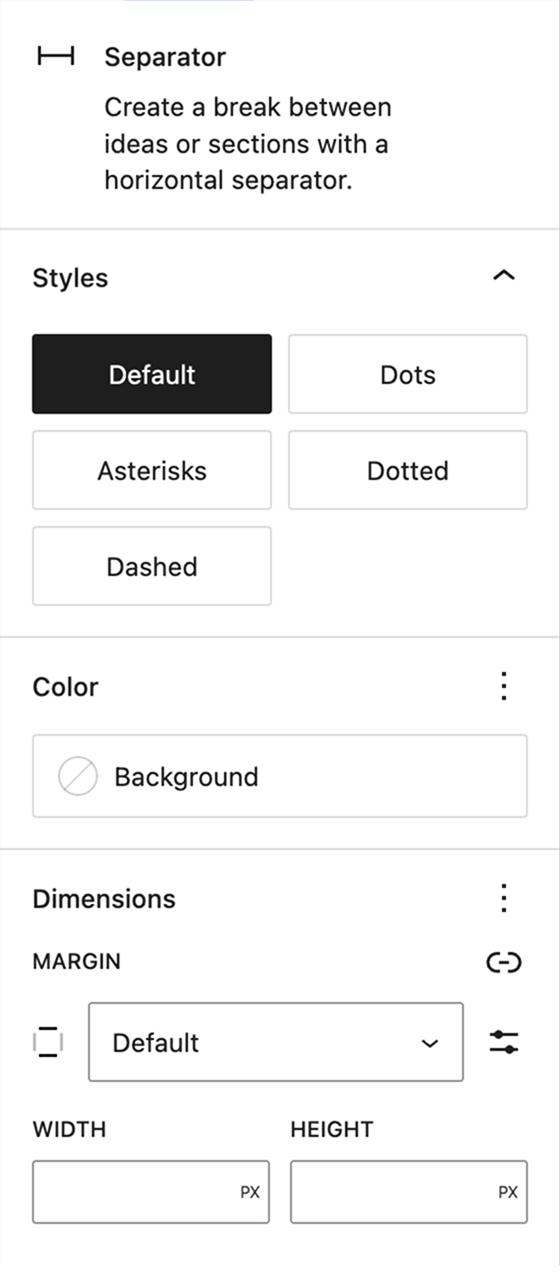
Separator styles
WordPress includes three separator styles, though your active theme may enable or disable some of them:
- Default: a simple horizontal line
- Wide line: a wider variant
- Dots: three centered dots
The Twentig plugin adds three more styles to the Separator block:
- Asterisks: a typographic break with an editorial character
- Dotted: a lighter, more delicate pattern
- Dashed: a classic dashed line
All styles work with the WordPress core color and margin controls. In addition, the Default, Dotted, and Dashed styles support Twentig’s width and height options described below.
Control separator width
WordPress gives you three built-in alignment options to control how far the separator stretches across the content area: Default, Wide width, and Full width.
For more precise control, Twentig adds a Width dimension field where you can enter any value and unit, such as 400px, 60%, or 20rem.
Control separator thickness
By default, the thickness of the Separator block is set by your theme, usually to 1px or 2px. With Twentig, you can override this using the Height dimension field, where you can enter any value and unit (px, em, rem, vh).
How to create a WordPress vertical separator
While the Separator block is horizontal by default, you can turn it into a vertical separator in WordPress with just a few settings. This is useful for dividing side-by-side columns or creating a subtle transition between two sections.
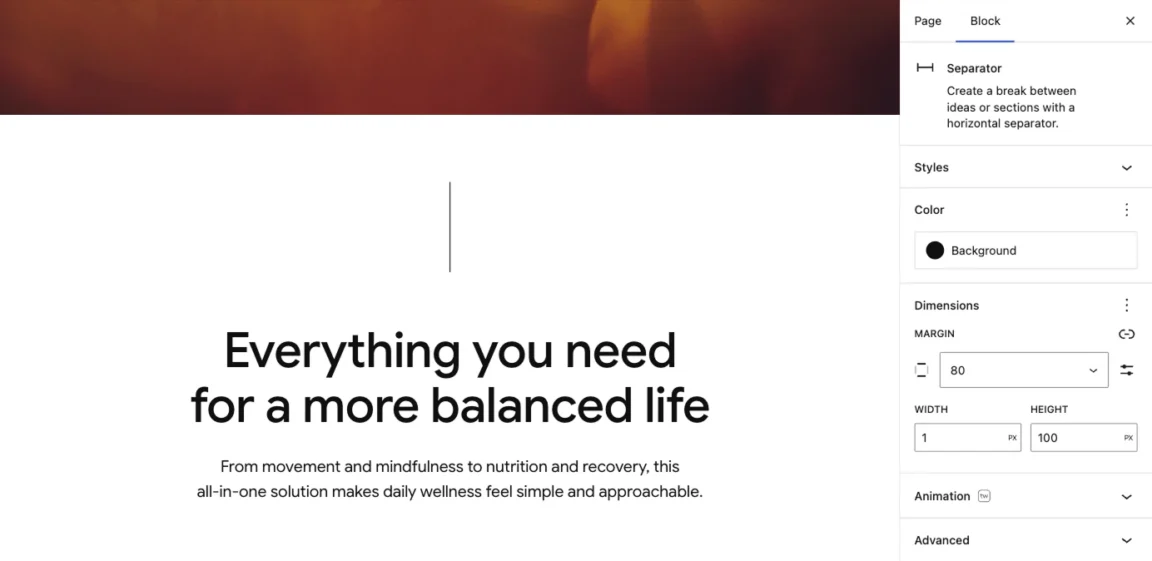
With Twentig, creating a vertical separator in WordPress is simple:
- Insert a Separator block.
- Open the block settings sidebar.
- Choose Default, Dotted, or Dashed style.
- In the Twentig Height field, set how tall the line should be, for example 100px.
- In the Twentig Width field, set how thick the line should be, for example 1px.
That’s all it takes to turn a horizontal separator into a vertical one. Since a vertical separator is typically used as a decorative element, remember to switch the HTML element from <hr> to <div> as described above.
WordPress separator line with text
You can combine the Separator block with a Heading or Paragraph block to create a separator line with a label in the middle. Group them inside a Row block to align them horizontally.

Here’s a code example to create a centered heading flanked by two horizontal lines:
<!-- wp:group {"layout":{"type":"flex","flexWrap":"nowrap"}} -->
<div class="wp-block-group">

  <!-- wp:separator {"style":{"layout":{"selfStretch":"fill","flexSize":null}}} -->
  <hr class="wp-block-separator has-alpha-channel-opacity"/>
  <!-- /wp:separator -->

  <!-- wp:heading -->
  <h2 class="wp-block-heading">Services</h2>
  <!-- /wp:heading -->

  <!-- wp:separator {"style":{"layout":{"selfStretch":"fill","flexSize":null}}} -->
  <hr class="wp-block-separator has-alpha-channel-opacity"/>
  <!-- /wp:separator -->

</div>
<!-- /wp:group -->
You can also remove the left separator to create an asymmetric layout, with the heading anchored to the left and a single line extending to the right.
Add animation to your separator
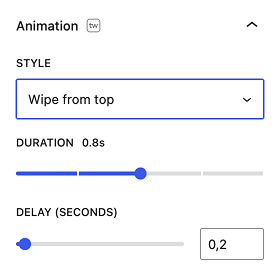
Twentig adds scroll-triggered animation controls to nearly every core block, including the Separator. You’ll find them in the Animation panel in the block settings sidebar. You can choose from different entrance styles:
- Fade: the line softly appears as it enters the viewport
- Wipe: the line draws itself across the screen from one side
- Scale: the separator scales into view
You can also set the duration and delay of each animation, giving you precise control over pacing and sequencing within a section.
Hide the separator on specific devices
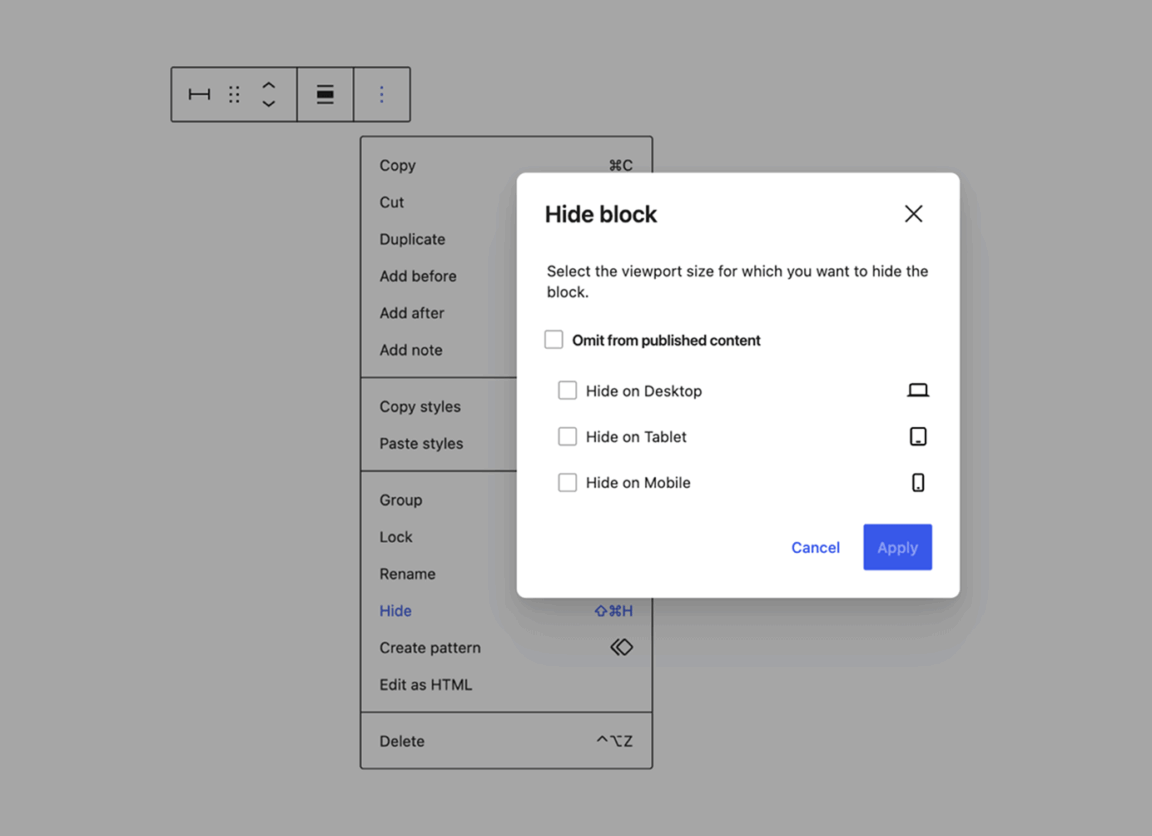
Sometimes a separator only makes sense on certain screen sizes. For example, if you’re using a vertical separator to divide two side-by-side columns on desktop, you’ll want to hide it on mobile when those columns stack vertically.
WordPress responsive visibility controls, available in WordPress 7.0, let you toggle Hide on Desktop, Hide on Tablet, or Hide on Mobile directly from the block toolbar.
Save your custom separator as a reusable pattern
If you plan to use the same customized separator across multiple pages or posts, you can save it as a synced pattern. Any update you make to the pattern will automatically apply everywhere it’s used.
Here’s how:
- Insert and customize your Separator block.
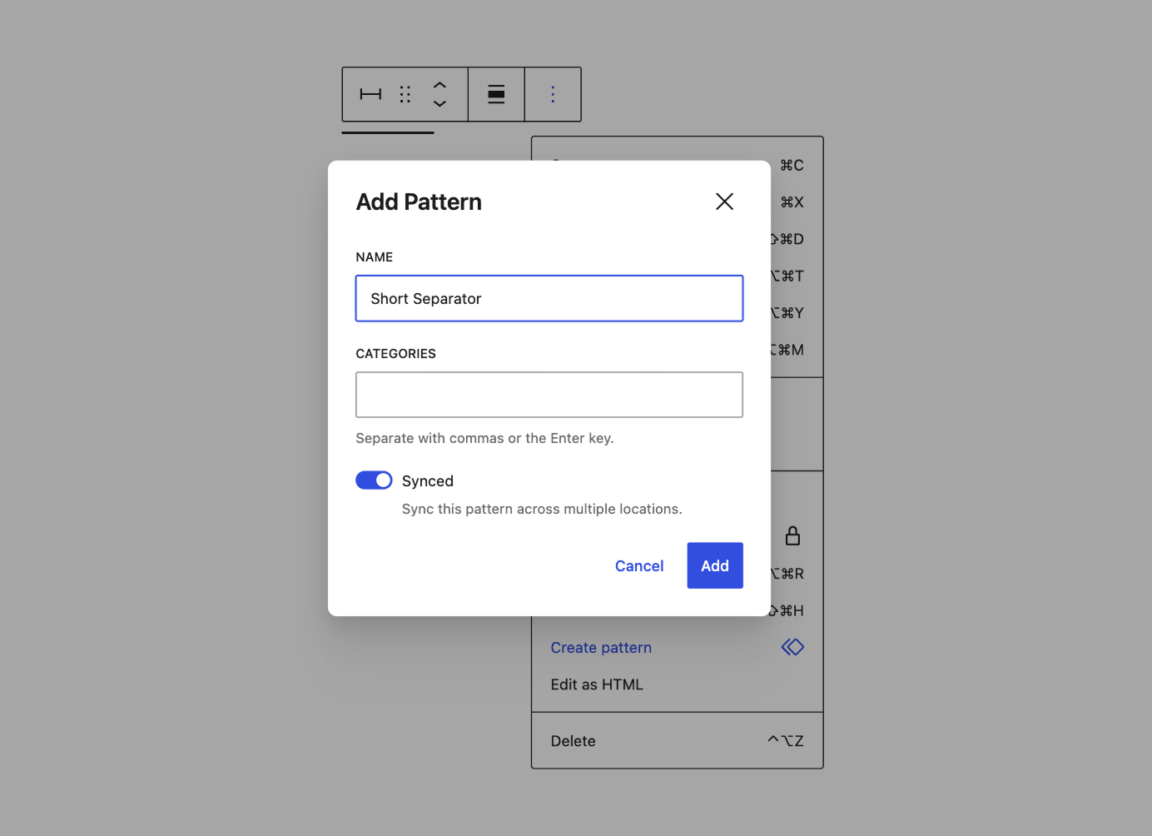
- Click the Options (⋮) button in the block toolbar.
- Select Create pattern.
- Give it a clear name (you can leave the Category field empty).
- Leave the Synced toggle on. This means any future edits to the pattern update every instance across your site automatically.
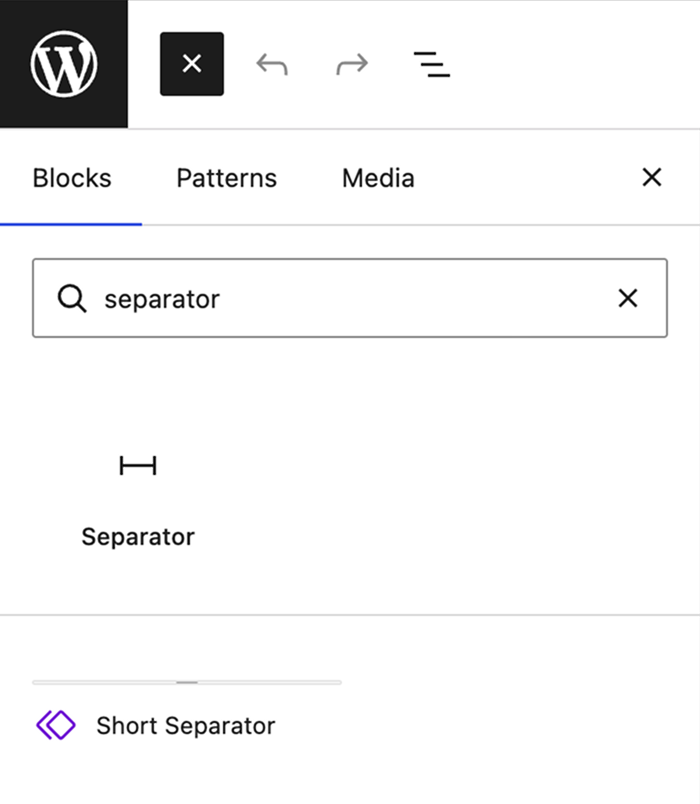
Your saved separator will appear in the block inserter when you search for its name. To edit it later, select any instance and click Edit original in the toolbar.
Make the most of the Separator block
The WordPress Separator block may look simple, but it can do much more than add a basic horizontal line. With Twentig’s extra settings, you can adjust its width and thickness, create a vertical separator, add subtle animations, and reuse your custom separator designs across your site as WordPress synced patterns.
Get Twentig for free and unlock more design flexibility for the WordPress Separator block and every other core block.
