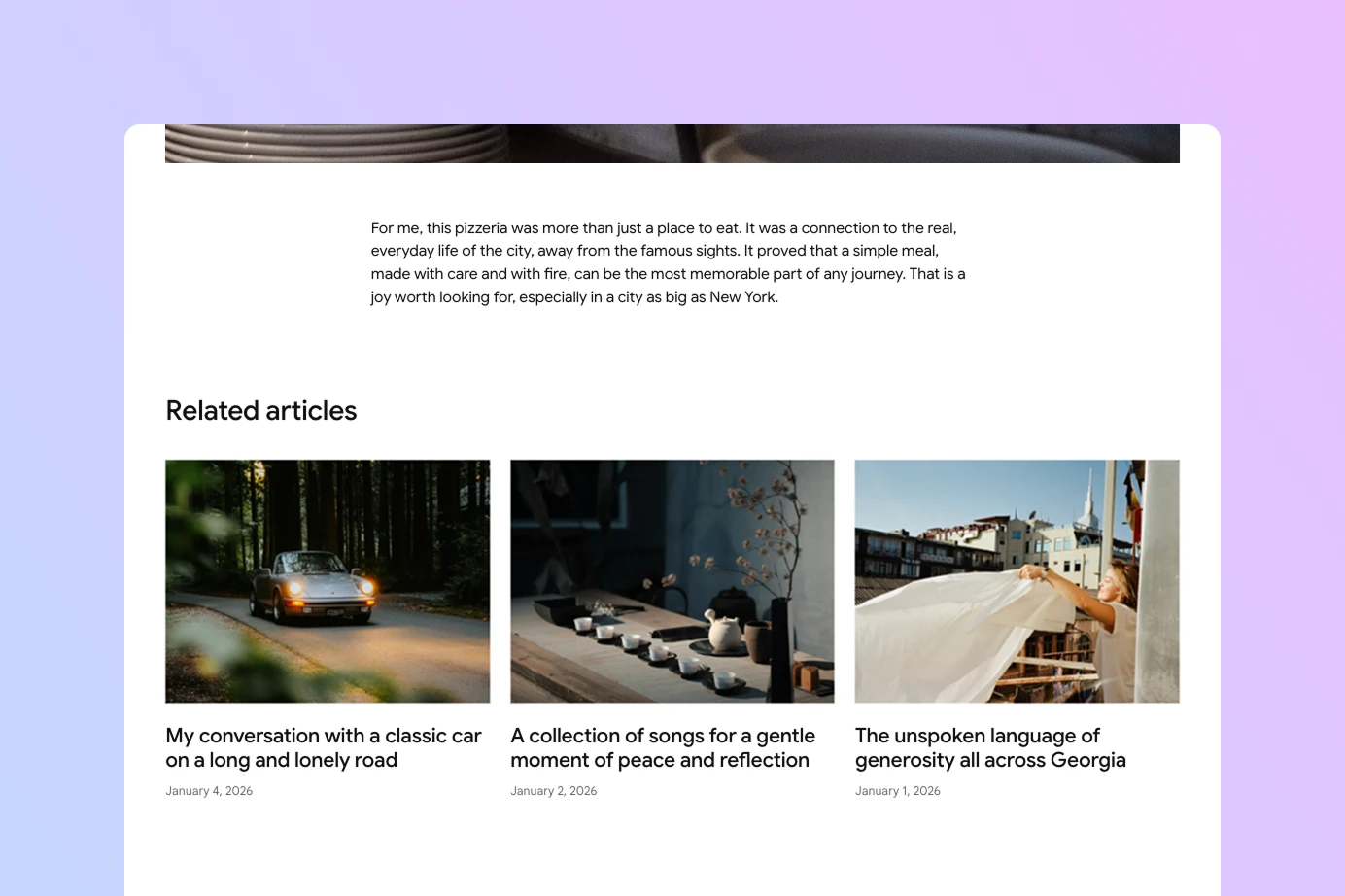
Displaying related posts in WordPress gives readers a simple way to continue exploring your website after they finish an article. It helps engage readers by guiding them to other relevant content.
With a WordPress block theme, you can add a related posts section to the Single Posts template and have it appear automatically on every blog post. The Twentig plugin provides filters to show posts that share a category or tag with the current article, without writing code.
This tutorial explains how to display related posts with the WordPress Query Loop block, customize the layout, and apply the same approach to projects in a portfolio.
How related posts work with the Query Loop block
The core WordPress Query Loop block displays posts according to settings such as post type, publication order, number of items, and taxonomy filters. It also includes an Exclude current option for creating a simple “More articles” section without repeating the article being viewed.
Rather than adding a separate WordPress related posts block, Twentig extends the core Query Loop block with two contextual filters:
- Same category displays posts that share at least one category with the current post.
- Same tag displays posts that share at least one tag with the current post.
When you place the Query Loop in the Single Posts template and enable Exclude current or a Twentig filter, the results adapt to each article, so you only need to configure the block once.
How to display related posts with the WordPress Query Loop block
Step 1: Install Twentig One and the Twentig plugin
To follow this tutorial, first install the Twentig One theme and the Twentig plugin by following our Get Started guide.
This tutorial uses Twentig One, but you can follow the same Query Loop method with any WordPress block theme.
Step 2: Add categories or tags to your posts
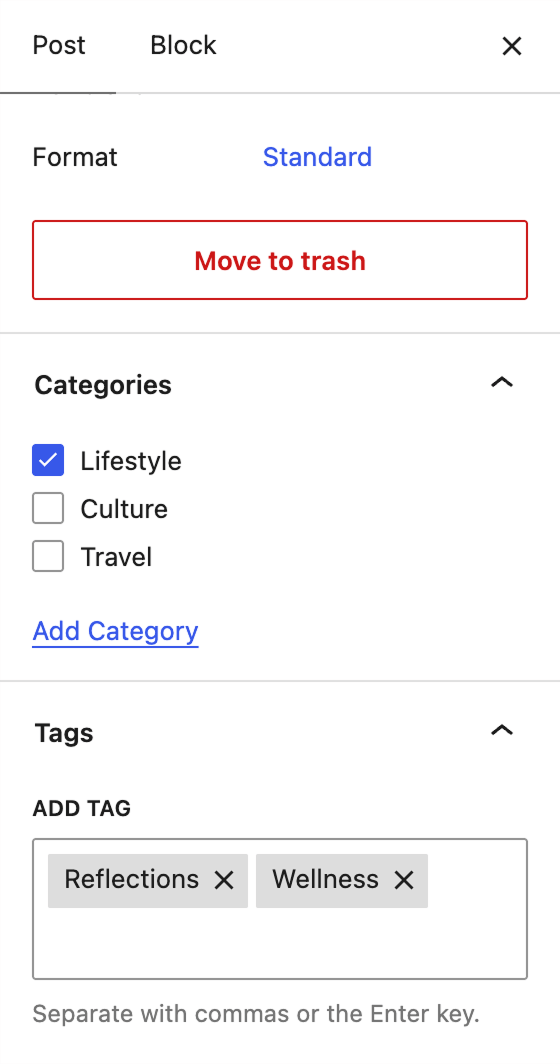
Before building the related-post section, organize the posts you want to connect. Open each post and assign a relevant category, tag, or both in the Post settings sidebar.
Categories are useful for broad subjects, while tags can describe specific topics that span categories. Apply them consistently, and avoid assigning the same generic tag to every article, as this can make almost every post appear related.
Step 3: Open the Single Posts template
Go to Appearance > Editor, open Templates, and select the Single Posts template. For quicker access, press Ctrl+K (Cmd+K on Mac) anywhere in the WordPress admin to open the Command Palette, then search for Single Posts and select the template.
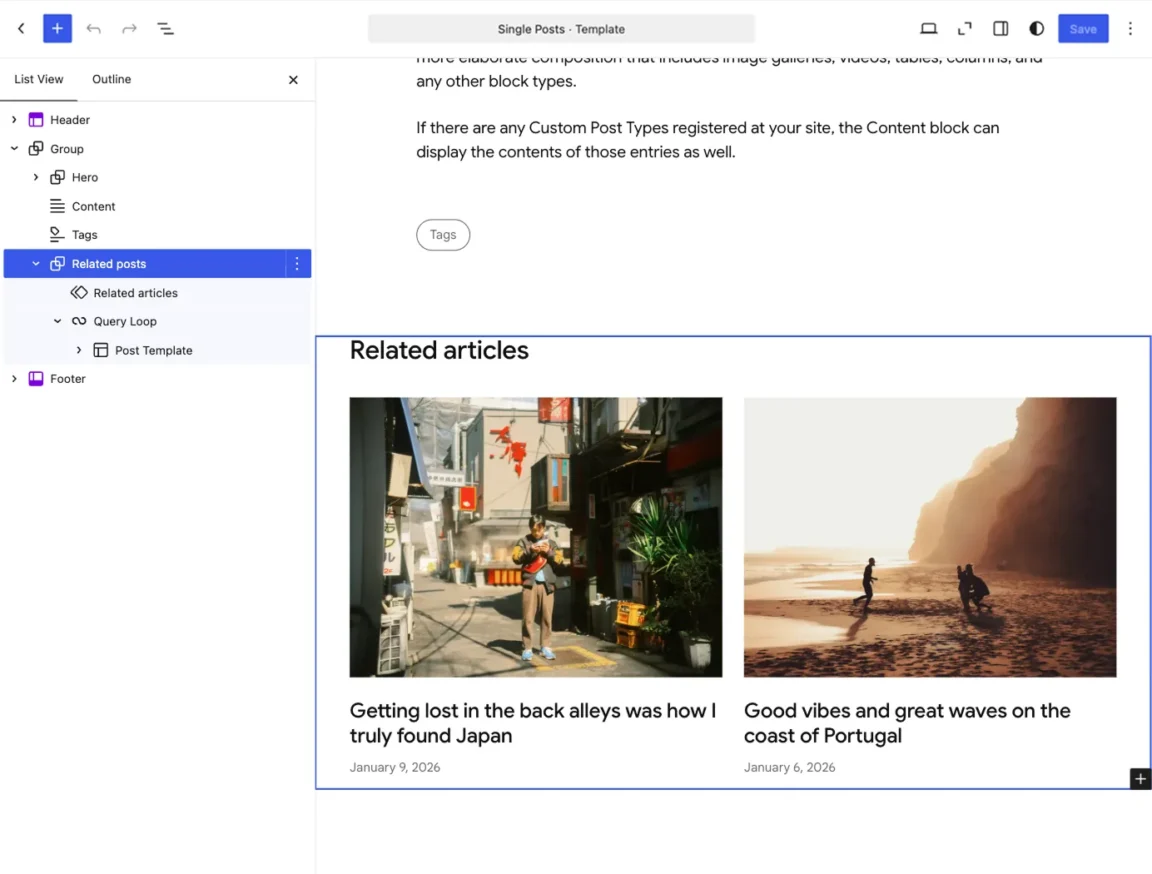
To make placement easier, open List View on the left to see the template structure, then choose where you want the related-post section to appear.
Step 4: Insert a Query Loop block or pattern
Add a heading such as “Related articles.” Below the heading, insert a Query Loop block and choose a layout. You can start with a blank query or select a design that includes featured images, titles, dates, or categories.
Twentig One also provides pre-designed related-post patterns. Open the block inserter and search for “related posts.” Choose a layout and insert it into the template.
Step 5: Configure the Query Loop
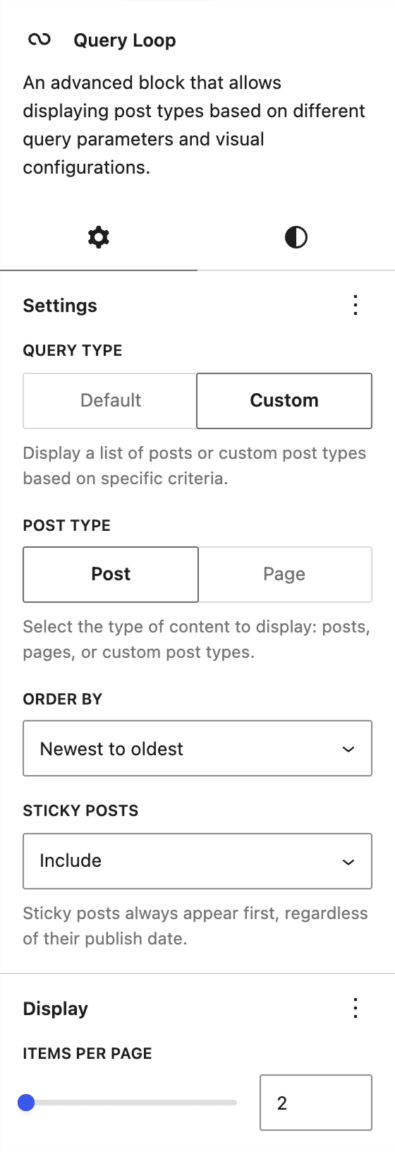
Select the outer Query Loop block and open the block settings sidebar  . Configure the query as follows:
- Set Query type to Custom.
- Set Post type to Post.
- Choose an order, such as Newest to oldest.
- Decide whether to include, exclude, or ignore sticky posts.
- Set Items per page to the number of related posts you want to show.
Pagination is usually unnecessary for a short related-post section. If your Query Loop layout includes a Pagination block, you can remove it.
Step 6: Filter the results by the current post
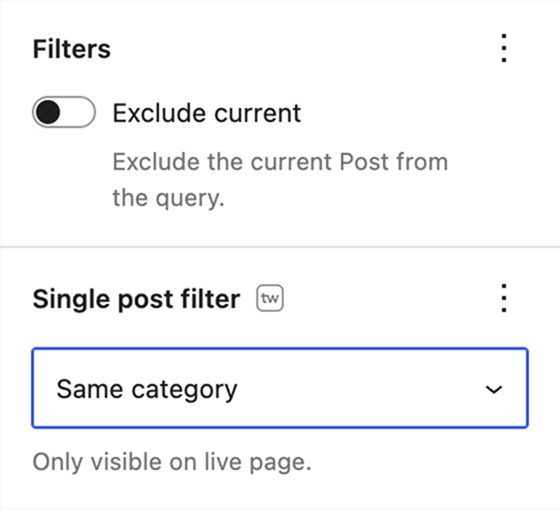
In the Query Loop settings, open Single post filter and choose how the results should relate to the current article:
- Choose Same category to display posts sharing one or more categories with the current post.
- Choose Same tag to display posts sharing one or more tags with the current post.
- Leave the Twentig filter unselected and use WordPress’s Exclude current option if you only want to show other recent posts.
When Same category or Same tag is selected, Twentig automatically excludes the current post, so you do not need to enable WordPress’s Exclude current option.
Step 7: Customize the related-post layout
The Post Template inside the Query Loop controls how each result looks. You can switch between a list and a grid, change the number of columns, and add or remove blocks such as:
- Post Featured Image
- Post Title
- Post Excerpt
- Post Date
- Post Categories or Tags
Make sure either the Post Title block or the Post Featured Image block links to the post. Changes made inside the Post Template apply to every related item.
You can add a No Results block inside the Query Loop with a short fallback message. WordPress displays it when the related-post query returns no matches.
Step 8: Save and test the template
Click Save to update the template, then open several posts on your live site. Check that the current article is not repeated and, if you selected a Twentig filter, that the results share the expected category or tag.
How to display related projects in a WordPress portfolio
Twentig includes a Portfolio post type for managing your online portfolio, complete with project categories and tags. You can use the same Query Loop filters to help visitors move between related case studies, photography series, client work, or other portfolio entries.
To add related projects:
- Go to Appearance > Editor > Templates.
- Open the Single Projects template. Twentig One includes this template; with another block theme, you may need to create it first.
- Add a “Related projects” heading below the content.
- Insert a Query Loop block and set Query type to Custom.
- Set Post type to Portfolio.
- Choose Same category or Same tag under Single post filter, or leave the Twentig filter unselected and enable Exclude current to show other projects.
- Customize the Post Template, save your changes, and verify that related projects display as expected on your live site.
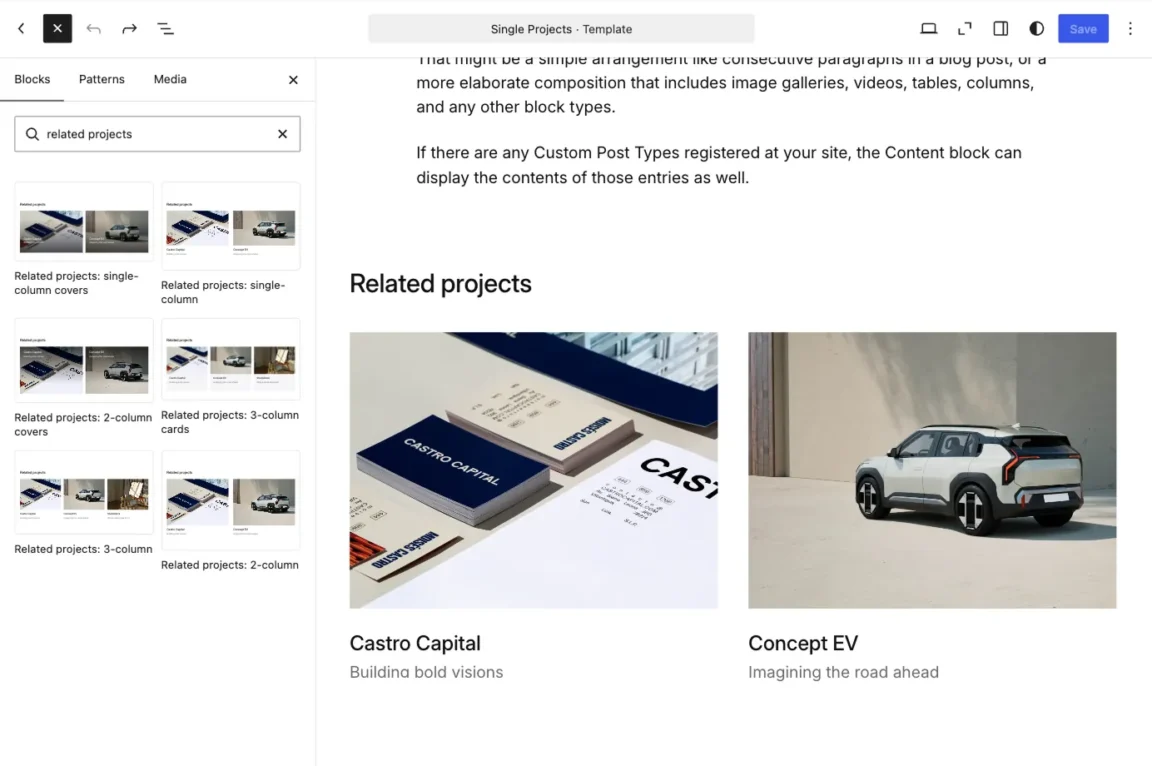
For a quicker setup with Twentig One, open the block inserter and search for “related projects.” The theme provides pre-built layouts you can start from.
An easier option with Twentig starter sites
Twentig includes starter sites that you can import directly from your WordPress dashboard. If you use one of these starter sites, the Onboarding Customizer lets you replace the default post or project navigation with related posts or related projects in one click. The related-content layout automatically adapts to the blog or portfolio layout you choose.
Frequently asked questions
Which related posts are shown when a post belongs to multiple categories?
Twentig uses every category assigned to the current post. Another post can be included when it shares at least one of those categories. For example, if the current article is in Design, Photography, and Tutorials, matching posts may come from any of those three categories.
Will this work on WordPress Pages?
The Same category and Same tag filters are designed for blog posts and Twentig Portfolio projects. Standard Pages do not use those taxonomies by default, so these contextual filters do not create related-page results. For Pages, you can use a regular Query Loop with core filters such as Exclude current or Parents.
Can I choose how many related posts appear?
Yes. Select the Query Loop block, set Query type to Custom, and change Items per page under the Display settings.
Add related posts to your WordPress site
Display related posts by category or tag directly from the Query Loop block with the free Twentig plugin.
