
A transparent header is a powerful design pattern that gives your WordPress site a modern, immersive feel. Instead of sitting in a separate bar, the header blends seamlessly with the hero section. This puts your visuals center stage — perfect for landing pages, portfolios, ecommerce, and marketing sites.
In this article, you’ll learn how to make a transparent header in WordPress using the Twentig One block theme and the WordPress block editor, no custom CSS or coding required. We’ll show you how to set it up on individual pages or site-wide templates, design your hero section, and combine it with a sticky header for a smooth scrolling experience.
A great real-world example of this design can be seen on On’s about page, which features a fullscreen video background that pairs beautifully with a transparent header. You’ll also see this technique used throughout the Twentig website, including this very article.

Table of contents
- How to set up a transparent header on your WordPress pages
- Designing your opening hero section in the WordPress block editor
- How to make the header transparent on single posts, archives, and other WordPress templates
- Make your transparent header sticky
- FAQs: Transparent header in WordPress
- Create your transparent header with Twentig One today
How to set up a transparent header on your WordPress pages
Twentig provides several page templates to help you build pages easily. Among them is the Transparent Header template.
Apply the Transparent Header template
- Open the page you want to edit in the WordPress block editor.
- Click the Settings
 icon to open the sidebar (if it’s not already visible).
 - Make sure you’re on the Page tab.
- Locate the Template setting and click the link next to it (displaying the current template name, “Pages” by default).
- Click Change template.
- Select Page: Transparent Header.
- Click Save or Publish to save your changes.
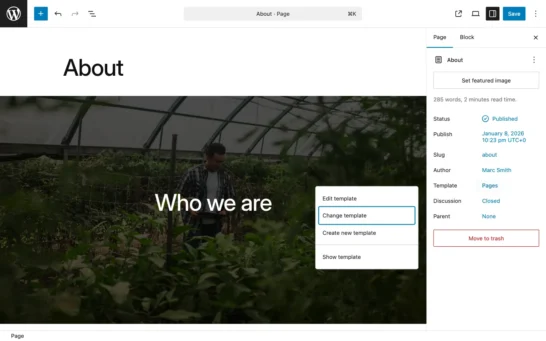
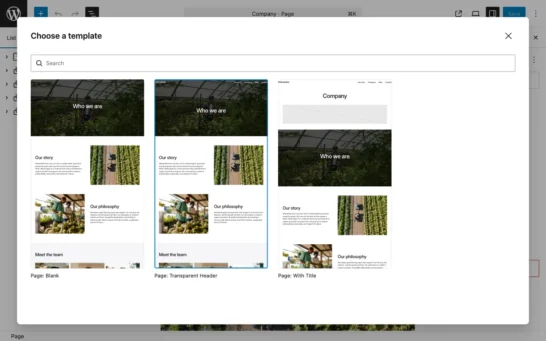
All set! Your site header now overlays the first section of the page.
What this template does under the hood
Curious how it works? When you apply the Transparent Header template, Twentig One automatically handles all the technical details for you. Behind the scenes, it adds a header-transparent class to the Header template part in the WordPress site editor. This class manages your header’s background, colors, and styling to ensure everything looks perfect. Here’s what it does:
Background transparency
The class removes the background color from the first Group block in the header, making it transparent so your hero section shines through. Any shadows or borders in your header are also removed to maintain a fully transparent look.
Smart color adaptation
It detects the text color of the first block on your page — typically a Group or Cover block. Then it applies that color to the header’s inner elements (Site Title, Site Logo, Navigation, Search, Social Icons, etc.). This ensures perfect readability, whether your hero background is light or dark.
Logo color
If you’re using the Site Logo block in the header, its color automatically adapts using an SVG filter. However, if your logo uses multiple colors or specific brand colors that contrast well with any background, you can preserve its original appearance. Here’s how:
- Select the Site Logo block.
- Open the Advanced panel in the settings sidebar.
- Add
logo-no-filterin the Additional CSS Class field.
This combination of automation and customization makes the Transparent Header template flexible and intuitive — no extra CSS or technical knowledge required.
Designing your opening hero section in the WordPress block editor
A well-designed hero section is key to making your transparent header look professional and readable. Thoughtful choices in color, contrast, and imagery ensure the header integrates naturally with your page design.
Choose your hero block and style
For the transparent header effect to work properly, start your page using either a full-width Group block or a full-width Cover block.
Group block styling ideas
Best for clean, minimalist designs with solid or gradient backgrounds.
- Use a subtle background color such as Base 2, Base 3, or any color that contrasts well with the main text color. Leave the text color as default.
- Set a strong background color using Contrast, Contrast 2, or Accent, then apply Base as the text color.
- Try a gradient background for a dynamic look, then pick a text color from the palette that meets contrast guidelines.
Cover block styling ideas
Best for high-impact visual storytelling with images or video.
- Set an image background and adjust the overlay opacity so the header links remain clearly visible (often 40-70% works well).
- Use a video background for extra impact and set an overlay as above.
- Toggle Full Height in the toolbar to create an immersive, fullscreen hero.
Important technical settings
Text color: Choose your hero text color from the theme palette — Base, Base 2, Base 3, Contrast, Contrast 2, or Accent. This tells the header which color to apply to its elements. If you don’t pick a color from the palette, the header uses the main body text color on Group blocks and white on Cover blocks.
Page title: Since the Transparent Header page template doesn’t include a page title, insert a Heading block (set to H1) in your hero section.
Built-in spacing: The theme automatically adds responsive top padding to the first full-width Group or Cover block, so your hero content sits nicely below the header bar. Leave this padding at default — no need to add your own.
Examples of transparent headers in action
Here’s how transparent headers look with different hero section designs, each built entirely in the WordPress block editor using Twentig One’s Transparent Header template.



How to make the header transparent on single posts, archives, and other WordPress templates
The page template method works great for individual pages. However, blog posts and archive pages need a slightly different approach. To enable the transparent header across different page types — including single posts, the blog index, archives, search results, and 404 pages — you’ll apply a CSS class to the Header template part. You’ll repeat this process for each template type where you want a transparent header:
- In your WordPress dashboard, go to Appearance > Editor.
- Click Templates in the left panel.
- Click the template you want to edit (e.g., Index, Single Post, All Archives, 404, or Search Results).
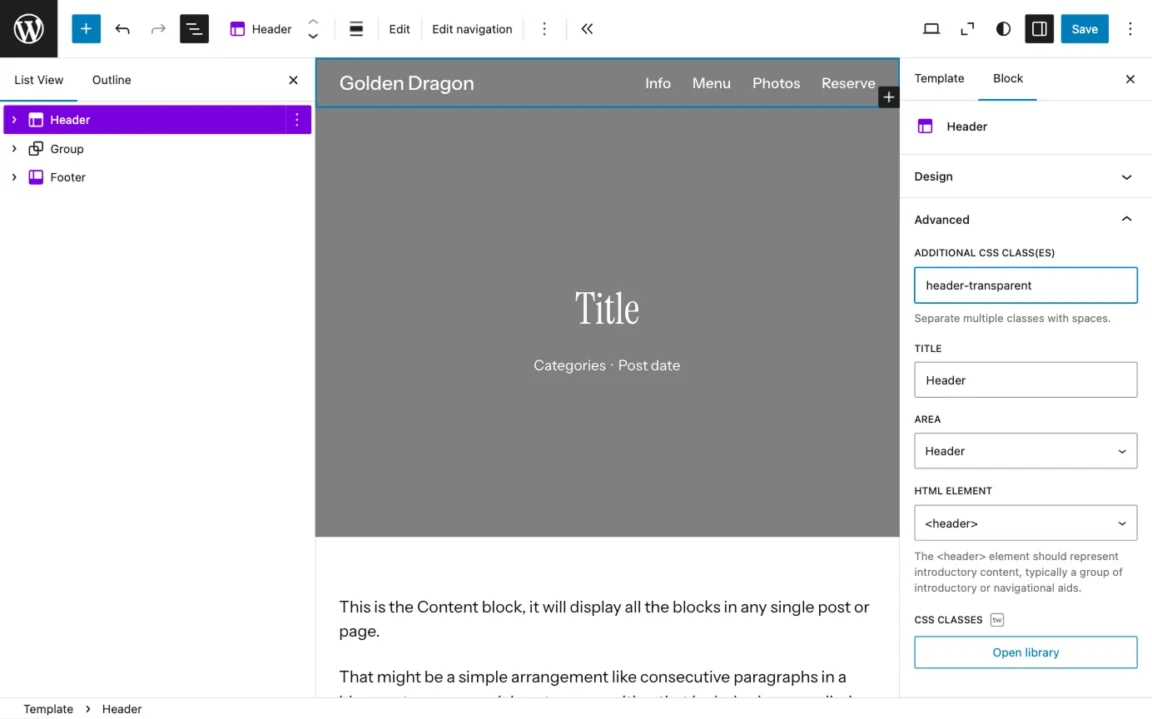
- Select the Header block.
- In the block settings sidebar, open the Advanced panel.
- Add
header-transparentin the Additional CSS class(es) field. - Adjust your hero section following the design tips above (see Designing your opening hero section).
- Click Save.
That’s it! Your transparent header will now automatically appear across all pages that use the template you’ve edited.
Make your transparent header sticky
To enable a sticky header in Twentig One, simply set the position to Sticky for the first Group inside your Header template part. When you pair a sticky header with the transparent header effect, the theme automatically includes a lightweight script for smart scrolling behavior.
The header starts transparent when the page loads. As users scroll, it smoothly transitions to its original opaque background and text color for improved readability. This ensures your header’s logo and navigation remain visible and accessible even after the hero section scrolls out of view.

FAQs: Transparent header in WordPress
What is a transparent header in WordPress?
A transparent header in WordPress is a design effect where your site’s header overlays the top section of a page instead of sitting above it in a separate bar. The header background is transparent, allowing images, videos, or colors from the hero section to show through while keeping your navigation and branding visible.
Does the transparent header work with all WordPress themes?
The transparent header template described in this article is specifically designed for Twentig One, which handles all the technical implementation automatically. Other WordPress themes may require custom CSS, third-party plugins, or manual coding to achieve a similar effect.
Why isn’t my transparent header showing correctly?
If your transparent header isn’t displaying properly, check these common issues:
- Make sure the first element on your page is a full-width Group or Cover block. Remove any empty Paragraph blocks at the top.
- Verify you’ve selected a text color from the theme palette (Base, Contrast, Accent, etc.) for your hero section.
- Confirm you’ve applied the Transparent Header page template or added the
header-transparentCSS class.
What’s the best height for a transparent header?
Keep your header height reasonable to avoid covering too much of your hero section. Since the transparent header uses absolute position to overlay your content, an overly tall header can obscure important hero section elements. Aim for a header height of around 80 pixels on desktop and around 60 pixels on mobile. Use minimal vertical padding and scale your logo to fit comfortably within these dimensions. This ensures your header remains visible and functional without dominating the hero section.
Create your transparent header with Twentig One today
Making a transparent header in WordPress is straightforward with Twentig One. The built-in template and customization options let you achieve this modern design effect without writing a single line of code.
Whether you’re building a landing page, portfolio, or marketing site, a transparent header helps your content shine while keeping navigation clear and accessible. Combine it with a sticky header for a smooth, dynamic scrolling experience.
Ready to transform your WordPress site? Download Twentig One and start creating beautiful transparent headers today — completely free.
