
Want your site navigation to stay visible as visitors scroll? In WordPress, you can create a sticky header (also called a fixed header) to make that possible. It keeps your menu and logo anchored to the top of the screen, helping users explore your content more easily, especially on long pages and mobile devices.
This design pattern has become a web standard because it improves usability, reduces bounce rates, and keeps your brand front and center throughout the browsing experience. You’ll find sticky headers on popular websites like Apple and here on the Twentig site.
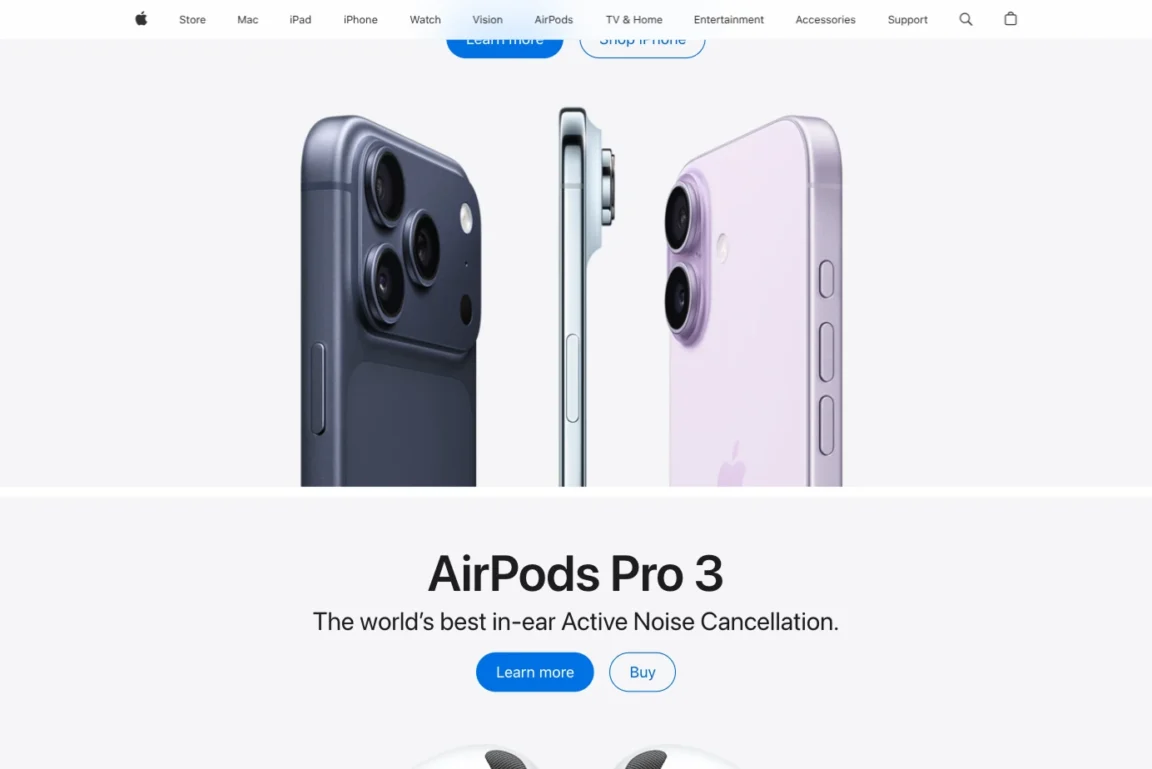
Although the WordPress block editor offers built-in sticky positioning features, you might have noticed that setting up a consistent sticky header across your website isn’t as straightforward as it should be. In this guide, we’ll look at the challenges of making a sticky header in the WordPress Site Editor and how the Twentig One block theme makes it effortless. We’ll also cover how to enable sticky headers in other block themes, share design tips, and explore advanced effects like sticky scroll-up and transparent sticky headers.
Table of contents
The challenge of creating a sticky header in WordPress
WordPress block themes natively support sticky positioning, but there’s a frustrating limitation that often catches users off guard. If you try to edit your header and set a Sticky position on the Group block inside it, it won’t work as expected. This is because WordPress applies the sticky setting to the inner Group block rather than the overall Header template part.
To make the header sticky site-wide in a standard block theme, you typically have to:
- Wrap the Header template part in a Group block.
- Enable sticky positioning on that wrapper group.
- Repeat this process individually on every single template (Index, Single Posts, Archives, Search Results, 404, etc.).
Miss even one template, and your visitors will experience an inconsistent UI. For most users, this tedious, template-by-template workflow is a major hurdle. That’s where Twentig One comes in.
How Twentig One simplifies sticky headers
Twentig One removes the repetitive setup required in the default WordPress workflow. When you enable sticky positioning in your Header template part, the theme automatically applies it globally across your entire site — no need to adjust every template individually.
How it works
Behind the scenes, Twentig One uses modern CSS to detect when sticky positioning is enabled on your header’s inner Group block and extends that behavior to the entire template part. This approach leverages the native WordPress controls but makes them work intuitively, the way you actually expect them to.
Steps to enable the sticky header in Twentig One
In Twentig One, the header is sticky by default. If you need to re-enable it or adjust its settings:
- Go to Appearance > Editor.
- Press Ctrl + K (or ⌘ + K) to open the command palette.
- Type “header” in the search input and select Header.
- Select the main Group block inside the Header template part.
- In the block settings sidebar, set Position to Sticky.
- Click Save.
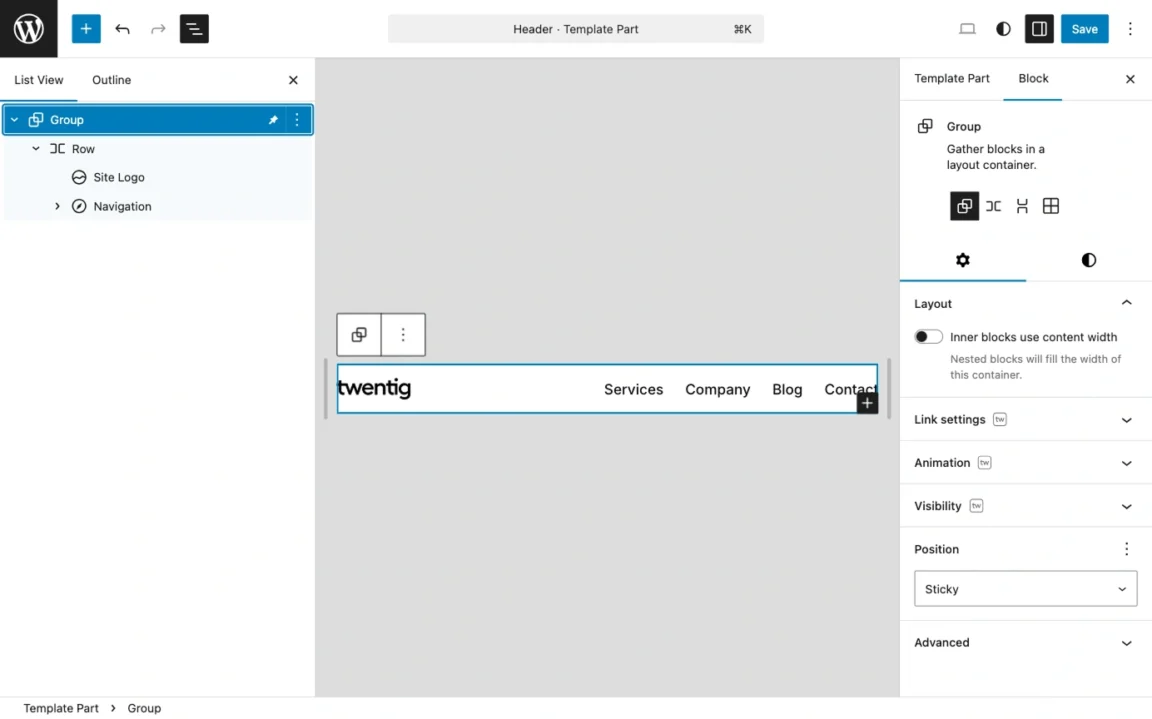
That’s it! Your header now stays visible as users scroll down any page of your site.
Note: If you need to unstick the header, follow the steps above but in step 5, revert the position to Default.
How to enable a sticky header in other WordPress block themes
If you’re using another block theme, such as the default Twenty Twenty-Five theme, the most efficient way to make your site header sticky is to add a few lines of custom CSS in your global styles:
- Inside your WordPress dashboard, go to Appearance > Editor.
- Press Ctrl + K (or ⌘ + K) to open the command palette.
- Type “CSS” in the search input and select Open custom CSS.
- Copy and paste the custom CSS below in the Additional CSS textarea.
- Click Save.
header.wp-block-template-part {
    position: sticky;
    top: var(--wp-admin--admin-bar--height, 0);
    z-index: 99;
}
This approach is quicker and cleaner than wrapping your header in unnecessary Group blocks across multiple templates.
Design tips for sticky headers
A well-designed sticky header enhances navigation without overwhelming your content. Here are key design best practices:
- Keep it compact: Use minimal vertical padding and a small logo height to keep the header light and unobtrusive, especially on mobile devices.
- Set a background color: Apply a solid background color to the main Group block inside your header to ensure navigation text remains legible when passing over other page elements.
- Add a shadow or border: A soft shadow or bottom border can help separate the header from the page content as users scroll.
- Test on mobile: Ensure your sticky header adapts to smaller screens and doesn’t take up too much vertical space.
Advanced effects: scroll-up and transparent headers
Twentig One goes beyond a basic WordPress sticky header by offering two modern features to elevate your design: the scroll-up effect and the transparent header.
The sticky scroll-up effect
This feature hides the header when visitors scroll down (saving screen space) and instantly reveals it when they scroll back up. It creates an app-like browsing experience that keeps navigation within easy reach without sacrificing vertical space — especially valuable on mobile. See it live on our Business Starter site.
To enable this effect, follow the steps to make your header sticky. With the Group block still selected, open the Advanced panel in the block settings sidebar and add the class tw-sticky-scroll-up in the Additional CSS class(es) field.
Transparent sticky header
You can also combine the sticky header with a transparent design for a sleek, dynamic look. The header starts transparent on page load, letting your hero section show through, then transitions smoothly to its defined background and text colors as users scroll for better readability. For a detailed walkthrough, check out our guide on how to create a transparent header in WordPress.
FAQs about WordPress sticky header
Is a sticky header good for SEO?
Yes, a sticky header can indirectly improve your SEO. By keeping navigation accessible as visitors scroll, it encourages users to explore more pages, reduces bounce rates, and improves overall engagement. All of these are positive signals that search engines consider when ranking your site. A Contentsquare case study found that sticky navigation increased conversion rate by 10% on a well-known retail site.
Should I use a sticky header on mobile?
Yes, sticky headers are especially valuable on mobile devices because they keep navigation within easy reach without requiring users to scroll back to the top. However, it’s crucial to keep your mobile header compact: use a hamburger menu for navigation, minimal padding, and a small logo (using the Twentig mobile width setting) to avoid taking up too much screen space.
Why doesn’t sticky positioning work on my WordPress header?
In most block themes, enabling sticky positioning on the inner Group block doesn’t make the entire header sticky site-wide. This happens because WordPress applies the setting only to that specific block, not the Header template part itself. Twentig One automatically solves this by detecting the sticky setting and extending it to the entire header, making it work as expected across all pages without manual template adjustments.
Does a sticky header need a background color?
Yes, it’s highly recommended. Without a solid background color, your header text will overlap with page content as visitors scroll, making your navigation unreadable. Adding a background color ensures your header remains legible and functional regardless of what’s behind it.
What’s the best height for a WordPress sticky header?
Keep your header around 80 pixels on desktop and around 60 pixels on mobile. Use minimal vertical padding and scale your logo to fit within these dimensions. Compact headers improve usability without dominating the screen, especially on mobile devices. For a more discreet header, use the sticky scroll-up effect.
How do I add a shadow or border to my sticky header in WordPress?
In the Site Editor, select the main Group block in your Header template part. Open the block settings sidebar, click the Styles tab, and locate the Border & Shadow panel. Use the controls to add a subtle shadow or bottom border. This helps visually separate your header from the page content as users scroll.
Conclusion
A sticky header is a simple yet effective design enhancement that improves your WordPress site’s usability and navigation. Whether you choose the effortless, automated approach with Twentig One or implement a custom solution in another block theme, your visitors will appreciate the smoother browsing experience.
