
WordPress post formats are a powerful yet often overlooked feature that lets you customize how different content types display on your site — such as videos, galleries, audio, and links — in engaging and visually distinctive ways. They help enhance your blog’s visual diversity, improve the user experience, and make your posts stand out.
Popularized by Tumblr in the 2010s and introduced in WordPress 3.1, the use of post formats has faded in WordPress themes. The Twentig One theme revives them with modern design treatments perfect for blogs and magazine-style sites.
In this article, we’ll explain what post formats are, show real-world examples from major publications, and walk you through how to change the post format in WordPress. We’ll also highlight Twentig One’s smart visual enhancements and Query Loop filtering for dynamic layouts.
Table of contents
- What are WordPress post formats?
- WordPress post formats examples
- How to change post format in WordPress
- How to use post formats with the Twentig One theme
- Filter posts by format with the Query Loop block
- Post formats and portfolio
- FAQs about WordPress post formats
- Experiment with post formats in Twentig One
What are WordPress post formats?
WordPress post formats are a built-in taxonomy that lets you categorize your posts based on their content type. Think of them as a piece of meta information that tells your theme “this post is primarily a video” or “this post is sharing an external link”, allowing the theme to adjust the layout accordingly.
Instead of every post looking identical, post formats create visual variety and highlight different content types appropriately. For example, icons can indicate the format type at a glance, a WordPress video post format showcases a prominent YouTube player, a WordPress gallery post format displays stunning photo grids, and a link post format signals readers they’re heading to external content.
WordPress supports ten formats, including Standard, Video, Audio, Gallery, Link, Image, Quote, Aside, Chat, and Status. However, post formats are entirely dependent on your theme. Your theme decides which formats are available and how they appear. For example, Twentig One focuses on the five most practical formats (Standard, Gallery, Link, Video, and Audio) with distinct layout treatments for each. The default Twenty Twenty-Five theme supports all ten formats but applies no custom styling.
WordPress post formats examples
Leading publications like Vogue, Reuters, and TechCrunch demonstrate the concept of post formats in action. Icons signal content types at a glance, while layouts adapt to showcase videos, galleries, and audio effectively.
Not all these sites use WordPress, but the approach translates perfectly to post formats. Here’s how they do it.
Gallery post format examples
Vogue uses gallery icons to flag photo-heavy pieces like their Celebrity Style features. Each gallery article features a long list of images, making it easy for readers to scroll through the entire collection.
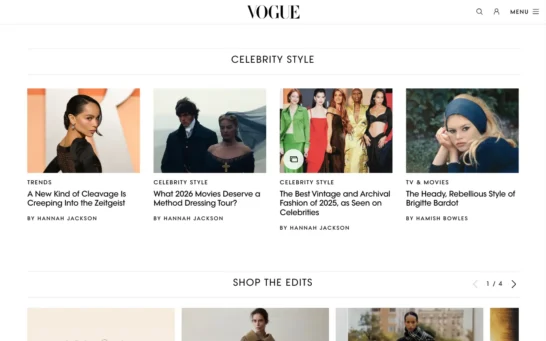
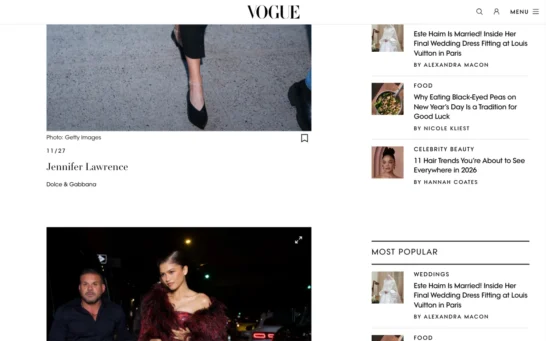
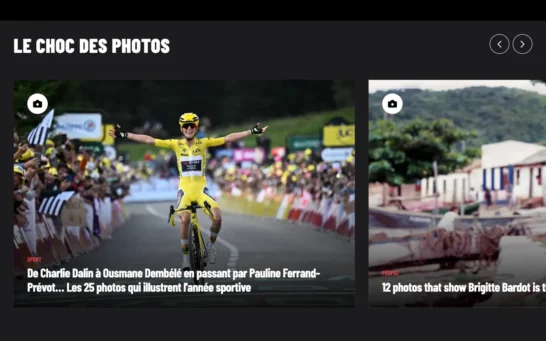
French magazine Paris Match combines gallery icons with grid layouts and lightbox functionality for immersive viewing.

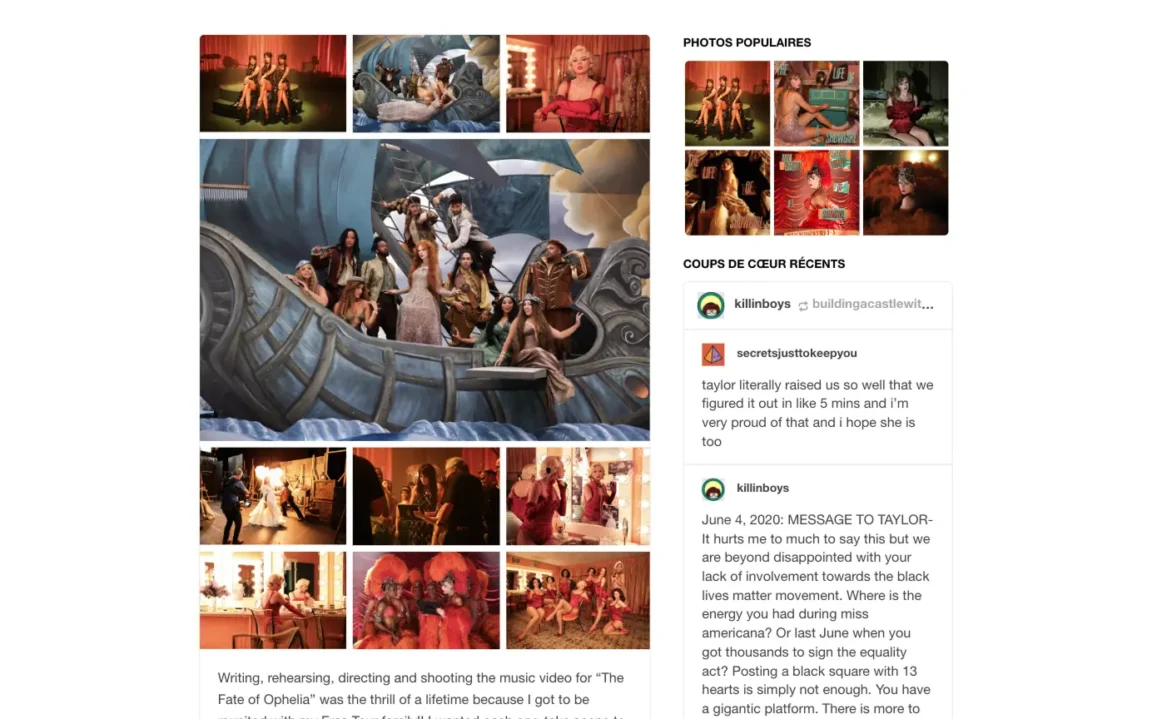
Taylor Swift’s Tumblr takes a different approach by displaying galleries directly on the homepage using stack and grid layouts, letting visitors browse images without clicking through to individual posts.
Video post format examples
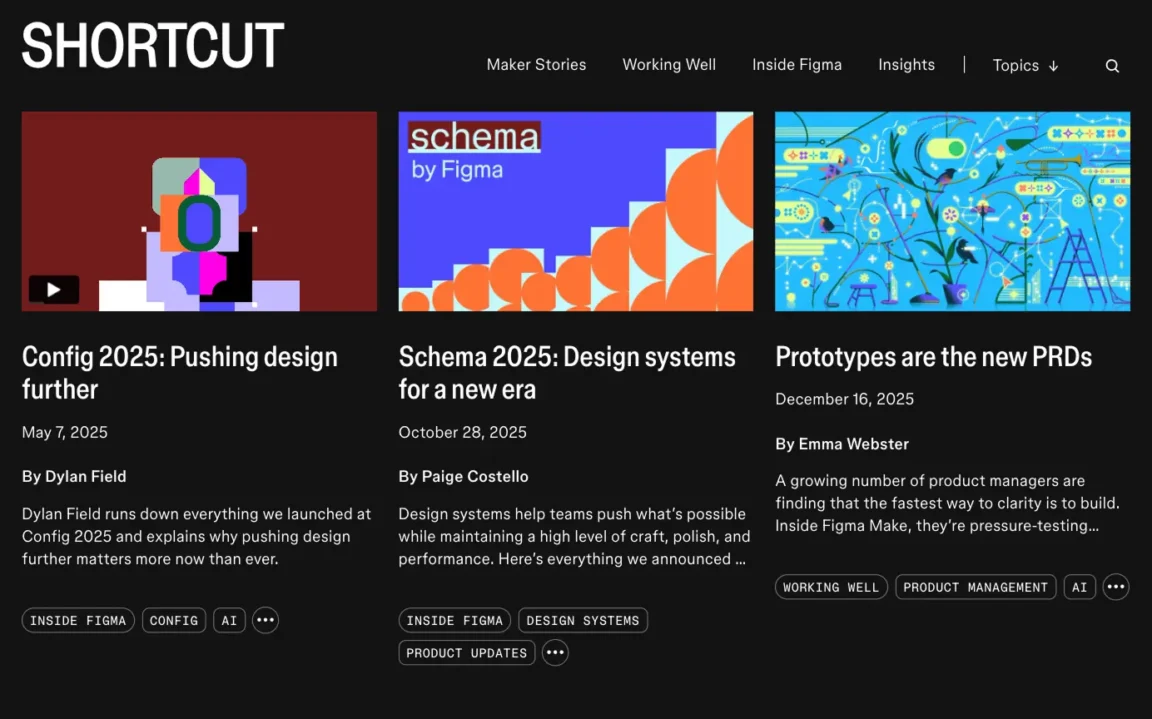
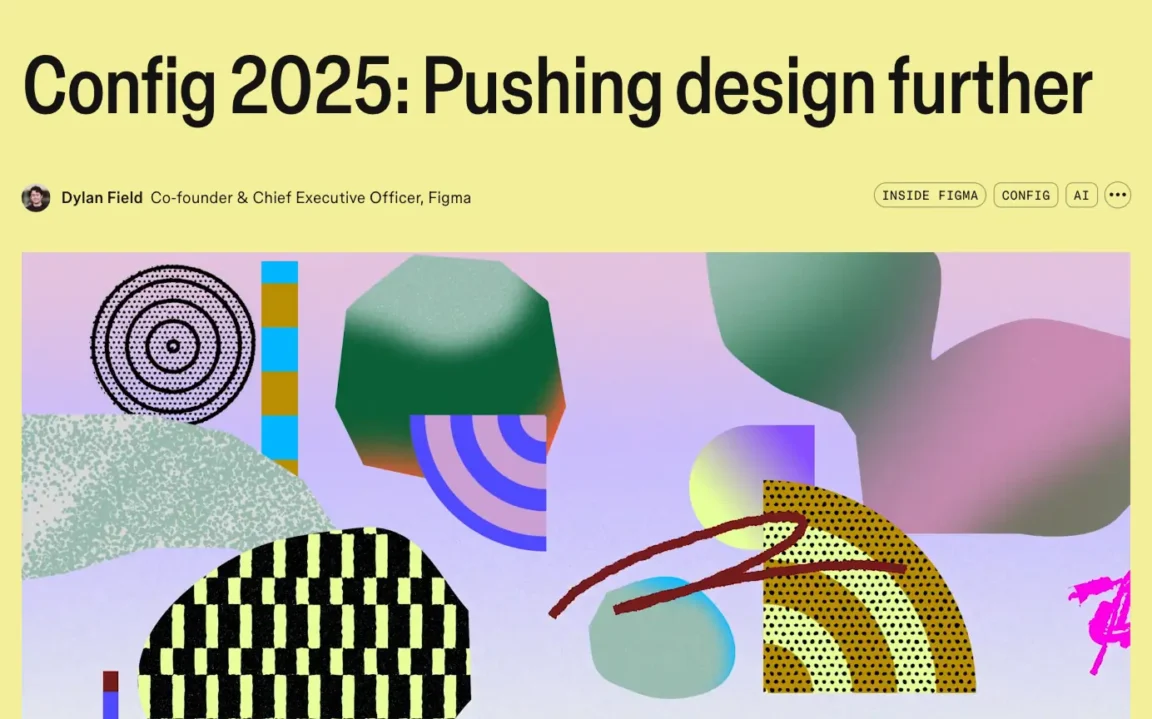
The Figma blog takes a bold approach: videos play directly on the homepage, replacing featured images entirely. On individual articles, the video appears prominently at the top, drawing readers in before they start reading.
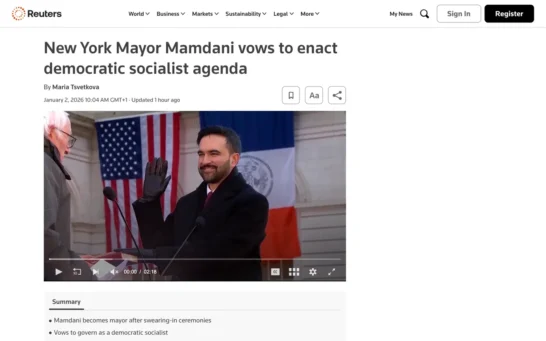
Reuters opts for subtlety with video icons on archive pages, creating a calmer browsing experience. Click through to an article and the video takes center stage in the hero section, ready to watch.

Audio post format examples
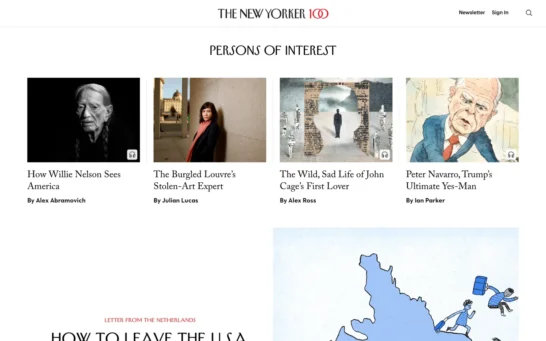
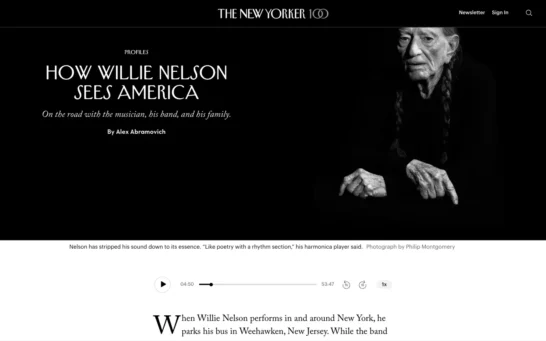
The New Yorker overlays a headset icon on featured images to signal that the article has an audio version. On single posts, a minimal audio player sits at the top of the content, accommodating both readers and listeners.
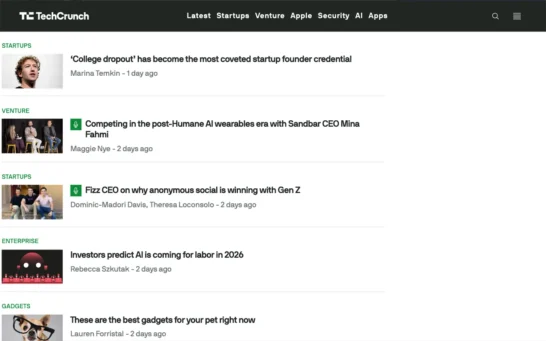
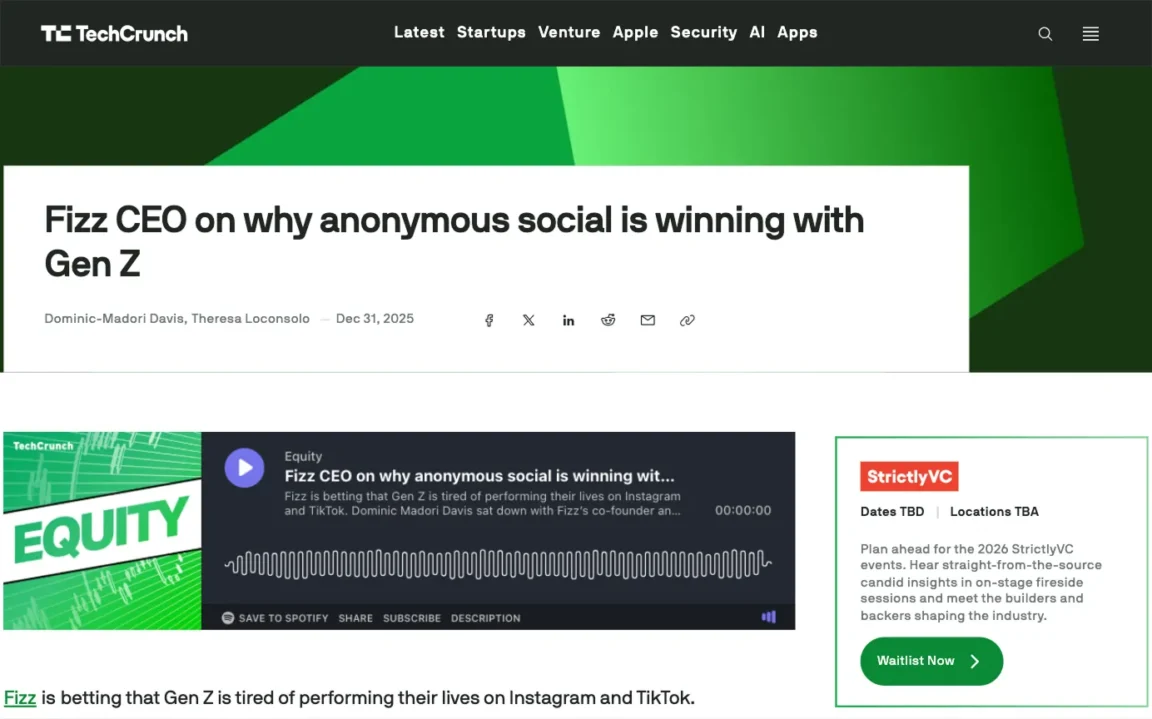
TechCrunch, which runs on a WordPress block theme, displays a mic icon next to article titles and embeds an audio player at the beginning of each audio post, notably for their podcasts.
Link post format examples
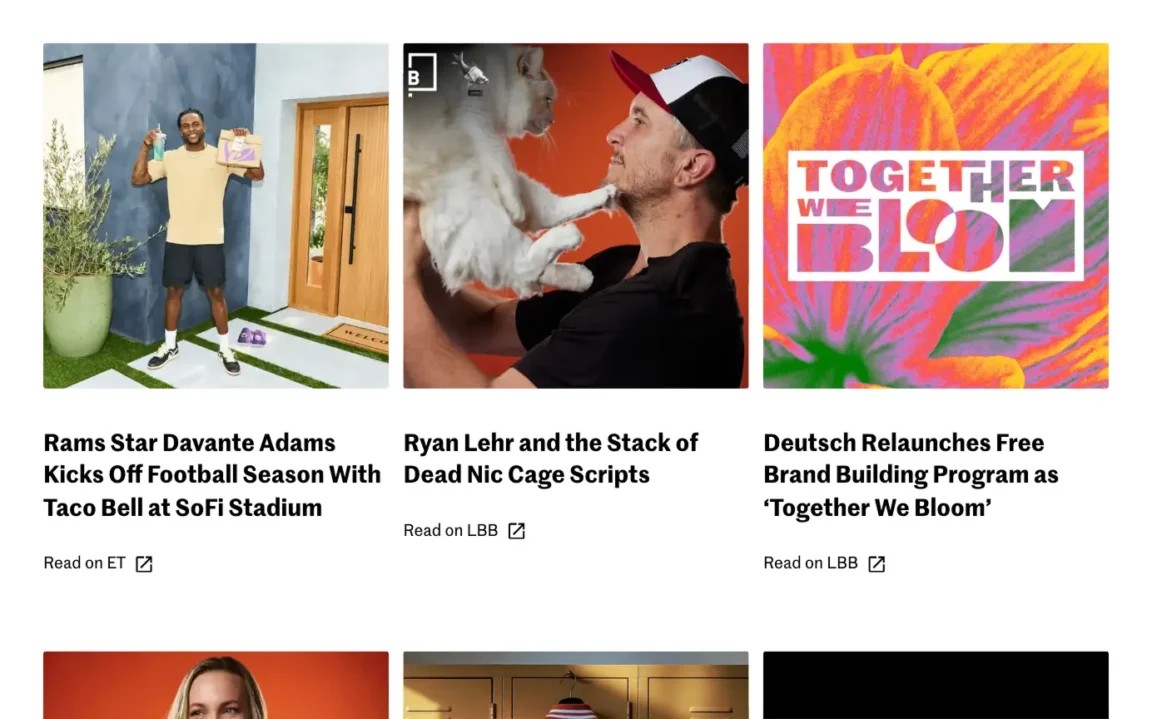
The Deutsch creative studio uses an external link icon next to post titles that link directly to external websites, making it clear readers will leave the site immediately.
How to change post format in WordPress
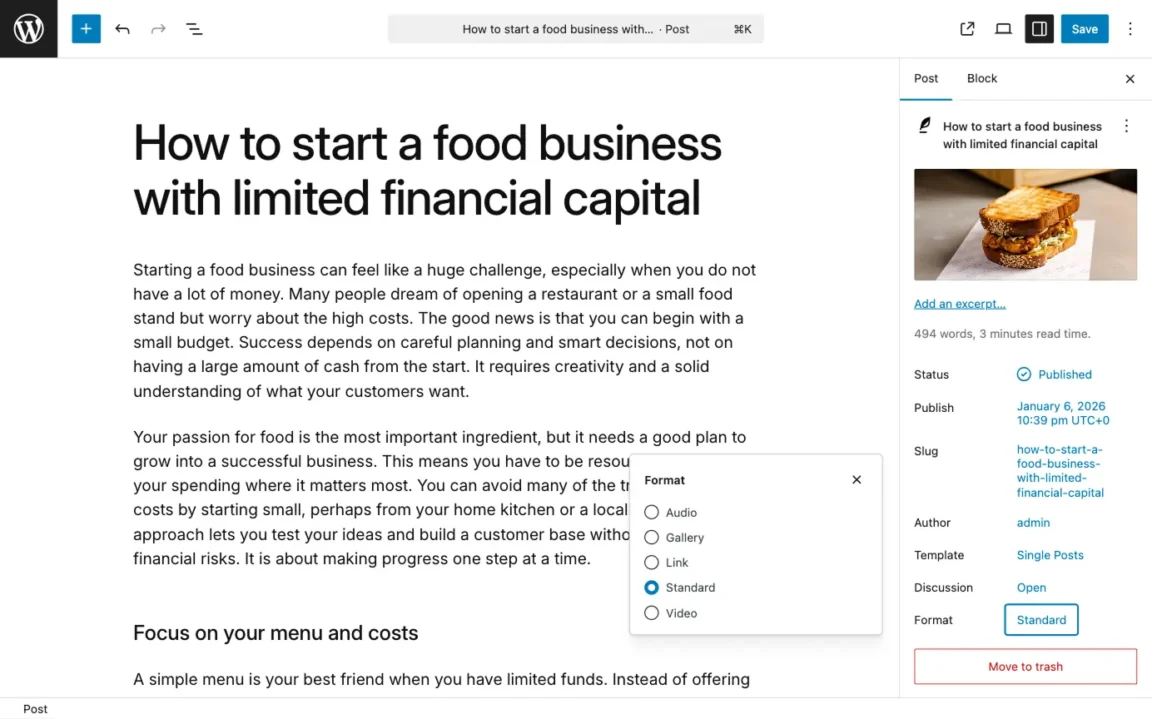
Changing the post format in WordPress is straightforward:
- Open the post you want to edit in the WordPress block editor.
- Open the Post settings sidebar.
- Look for Format and click the link next to it showing the current format (Standard by default).
- Select the format that best fits your content.
- Click Save or Publish.
Note: If the post format option doesn’t appear, your theme likely doesn’t support it. Activate Twentig One or another theme that includes post format support.
How to use post formats with the Twentig One theme
Twentig One supports five key post formats — Standard, Gallery, Video, Audio, and Link — and enhances them with display options that help readers instantly recognize the type of content you’re sharing.
- Standard: Uses the default layout defined by the theme templates, which you can fully customize in the WordPress Site Editor.
- Gallery / Video / Audio: Lets you display an icon overlay on the featured image indicating the format type, or replace the featured image with the media itself.
- Link: Adds an external link icon next to the post title, signaling that clicking will take readers off-site.
Let’s explore how to use and customize each post format.
Customizing post format display
Twentig One uses CSS classes on the Featured Image block to control how post formats appear:
- has-format-icon — Adds an overlay icon for video, audio, or gallery posts
- has-format-media — Replaces the featured image with the actual media (video, audio, or gallery)
These options give you flexibility in how your posts appear in grids, archives, and single views. To apply a class:
- Select the Featured Image block in any Query Loop or Single Post template.
- Open the Block Settings sidebar.
- Under the Advanced panel, enter or select the class name in the Additional CSS Classes box.
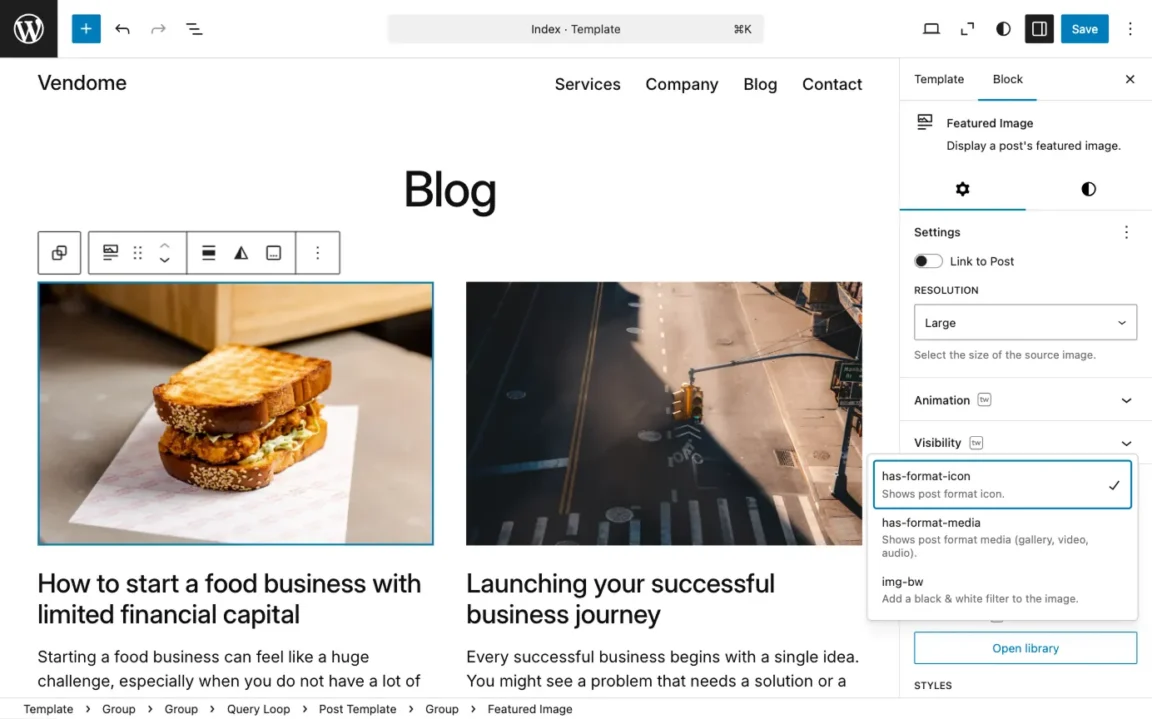
Note: By default, Twentig One automatically applies the has-format-icon class to all Query Loop blocks used in the site templates (index, archives, search results).

WordPress standard post format
The Standard format is the default for traditional blog posts and articles. It’s what most WordPress sites use for the majority of their posts. It displays your content with your theme’s default layout — typically featuring a title, featured image, custom excerpt, and full content — that you can fully customize in the WordPress Site Editor. Use Standard for text-focused content like how-to guides, tutorials, and general articles where the writing is the main attraction.
WordPress gallery post format
To create a gallery post, you can use the core Gallery block that offers multiple layout options: stack, grid, or Twentig’s exclusive justified and carousel layouts. Alternatively, you can insert multiple Image blocks throughout your content for a more editorial approach, as seen in the Vogue example.
If you use the has-format-icon class, Twentig One automatically displays a gallery icon on top of the featured image.
If you use the has-format-media class to replace the featured image with the gallery, Twentig One detects and displays the first Gallery block found in your post content. For single posts, the Gallery block must be the first block in your content if you want it to appear in the hero section, replacing the featured image.
WordPress video post format
To create a video post, add an Embed block (YouTube, Vimeo, Dailymotion, TikTok, Animoto, VideoPress) or Video block (self-hosted MP4, WebM) anywhere in your post content.
If you use the has-format-icon class, Twentig One automatically displays a video icon on top of the featured image.
If you use the has-format-media class to replace the featured image with the video, Twentig One detects and displays the first video found in your post content. For single posts, the video must be the first block in your content if you want it to appear in the hero section, replacing the featured image.
WordPress audio post format
To create an audio post, add an Embed block (YouTube, SoundCloud, Spotify, Mixcloud, Pocket Casts) or Audio block (self-hosted MP3) anywhere in your post content.
If you use the has-format-icon class, Twentig One automatically displays an audio icon on top of the featured image.
If you use the has-format-media class to replace the featured image with the audio, Twentig One detects and displays the first audio found in your post content. For single posts, the audio must be the first block in your content if you want it to appear in the hero section, replacing the featured image.
WordPress link post format
To create a link post, add a link anywhere in your post content using the block editor’s toolbar. Twentig One automatically detects the first link in your content, applies it to your post title, and adds an external link icon next to the title, ensuring readers know they’ll be taken to another website.
You have two options for how your link post appears:
- Link only: Create a link to the external URL without any additional text. In archive views, Twentig One displays just the post title linking to the external site, creating a clean, minimal presentation perfect for curated link collections.
- Link with commentary: Add your own text before or after the link. This text becomes your post excerpt, allowing you to provide context, commentary, or a summary of the external content.
SEO tip: For link posts, allow search engines to index them only if your post adds unique commentary or value. Otherwise, configure your SEO plugin to noindex them to avoid thin content penalties. For example, if you’re using Yoast SEO, set “Allow search engines to show this content in search results?” to “No.”
Filter posts by format with the Query Loop block
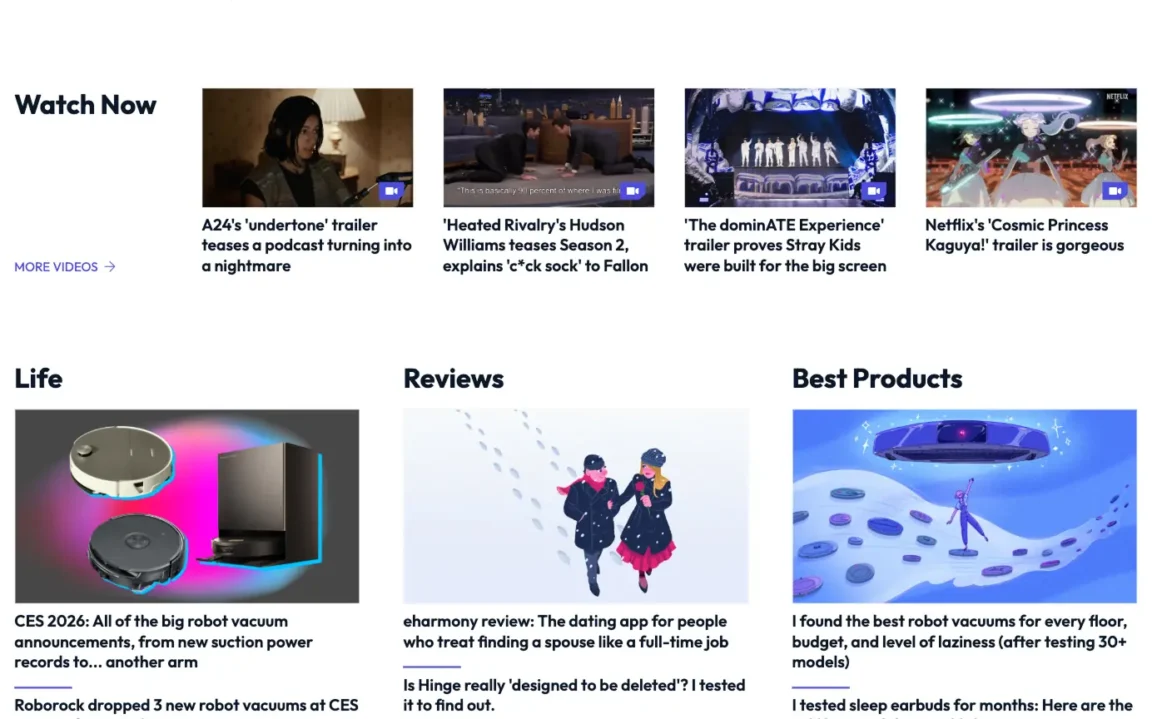
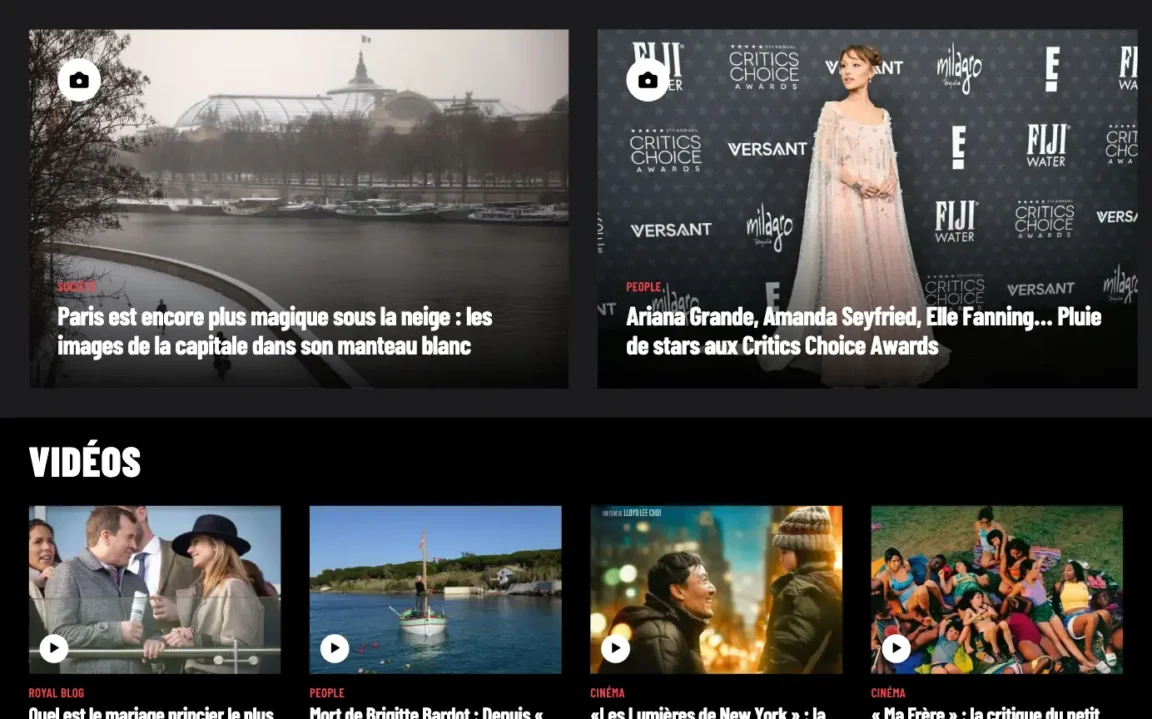
The Query Loop block lets you filter and display specific post formats anywhere on your site. It’s a powerful way to organize your content and help visitors browse specific types of posts — perfect for creating dedicated video sections or gallery showcases. Sites like Mashable feature a video section that displays only video posts, while Paris Match uses separate sections for galleries and videos on their homepage.
To filter by post format:
- Add a Query Loop block to your page or template.
- Select the Query Loop block and open the block settings sidebar.
- Click the three dots (⋮) next to Filters to open the Filters options menu.
- Click Formats.
- Choose which format(s) you want to display.
The loop will automatically show only posts matching the selected format. To display format icons or replace featured images with media, apply the CSS classes explained in the “Customizing post format display” section above.
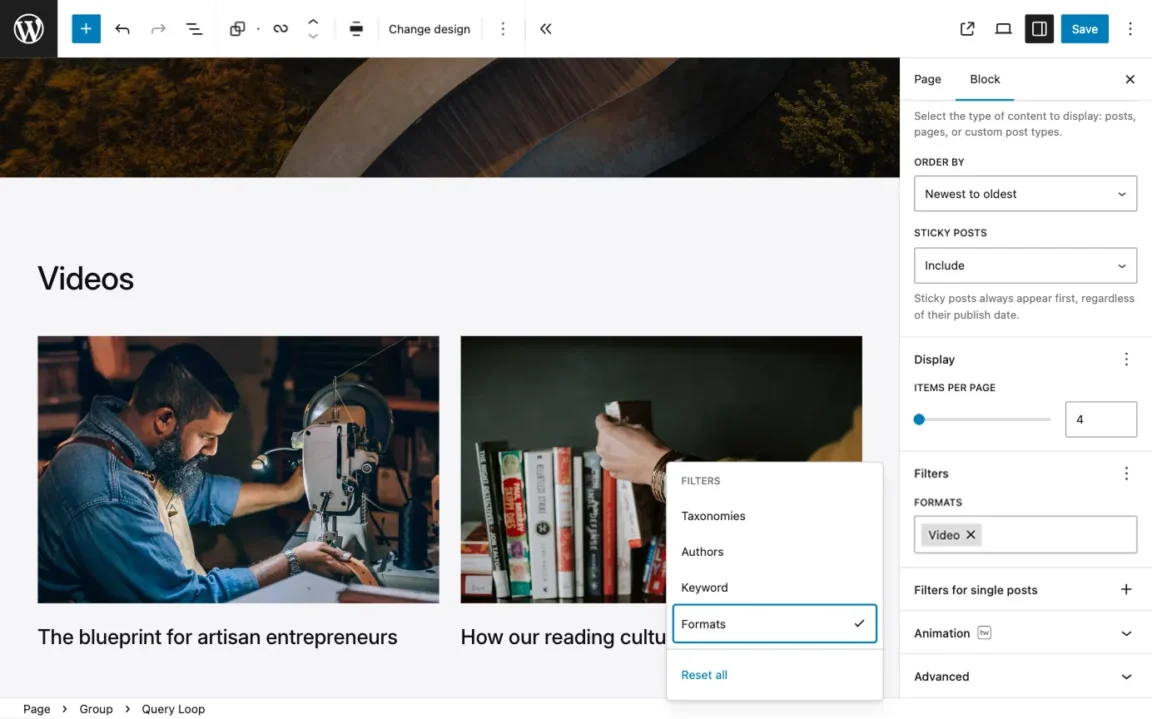
Post formats and portfolio
The Twentig plugin offers built-in portfolio features, including a dedicated Portfolio custom post type. If your WordPress theme supports post formats, like Twentig One, you can apply them to portfolio projects just like blog posts — showcasing project videos, galleries, or external links with the same display options and format-specific styling.
For example, a video production agency can use the video format to display their work directly in the portfolio grid or feature videos prominently in the hero section of individual project pages, making their portfolio more engaging and professional.
FAQs about WordPress post formats
Why can’t I change the post format in WordPress?
Post formats are theme-dependent — the option only appears in the Post settings sidebar if your active theme supports them. Switching to a theme like Twentig One, which supports and styles multiple formats, will make the Format selector available immediately.
What’s the difference between WordPress categories and post formats?
While both organize content, they serve different purposes. Categories group posts by topic (e.g., “News”, “Travel”, “Technology”), helping readers find subjects they’re interested in. WordPress post formats classify posts by content type (e.g., Video, Audio, Gallery), making it easy to recognize what kind of content they’re about to consume at a glance. You typically use them together for a well-organized, visually engaging site. For example, a video post about travel would use the Video format and the Travel category.
Can I change the post format after publishing?
Yes, you can change a post format at any time, even after it’s published. Simply edit the post in the WordPress block editor, select the new format from the Post settings sidebar, and update the post. The change takes effect immediately. However, if you’ve added format-specific content (like a video or gallery), you may want to adjust that content to match the new format for the best presentation.
Can I assign multiple post formats to a single post?
No, WordPress allows only one post format per post. This is by design — a post is either primarily a video, gallery, audio, link, or standard article. However, you can still mix content types inside the post itself (text, images, video, audio). The format simply indicates the main content type, not every element in the post.
Can I create custom post formats in WordPress?
No, you cannot create custom post formats in WordPress. The ten built-in formats (Standard, Video, Audio, Gallery, Link, Image, Quote, Aside, Chat, and Status) are hardcoded into WordPress core. However, your theme decides which of these formats to support and how to style them. Twentig One focuses on the five most practical formats with distinct styling, while other themes may support different combinations.
Experiment with post formats in Twentig One
WordPress post formats give you a powerful way to differentiate and organize your content by type. Whether you’re publishing videos, galleries, audio, or curated links, post formats create visual variety and help each content type stand out.
Twentig One brings these concepts to life with built-in format styling and flexible display options, making it simple to enhance your content without writing code.
Ready to use post formats? Get Twentig One free and transform your WordPress blog with professional post format styling.
