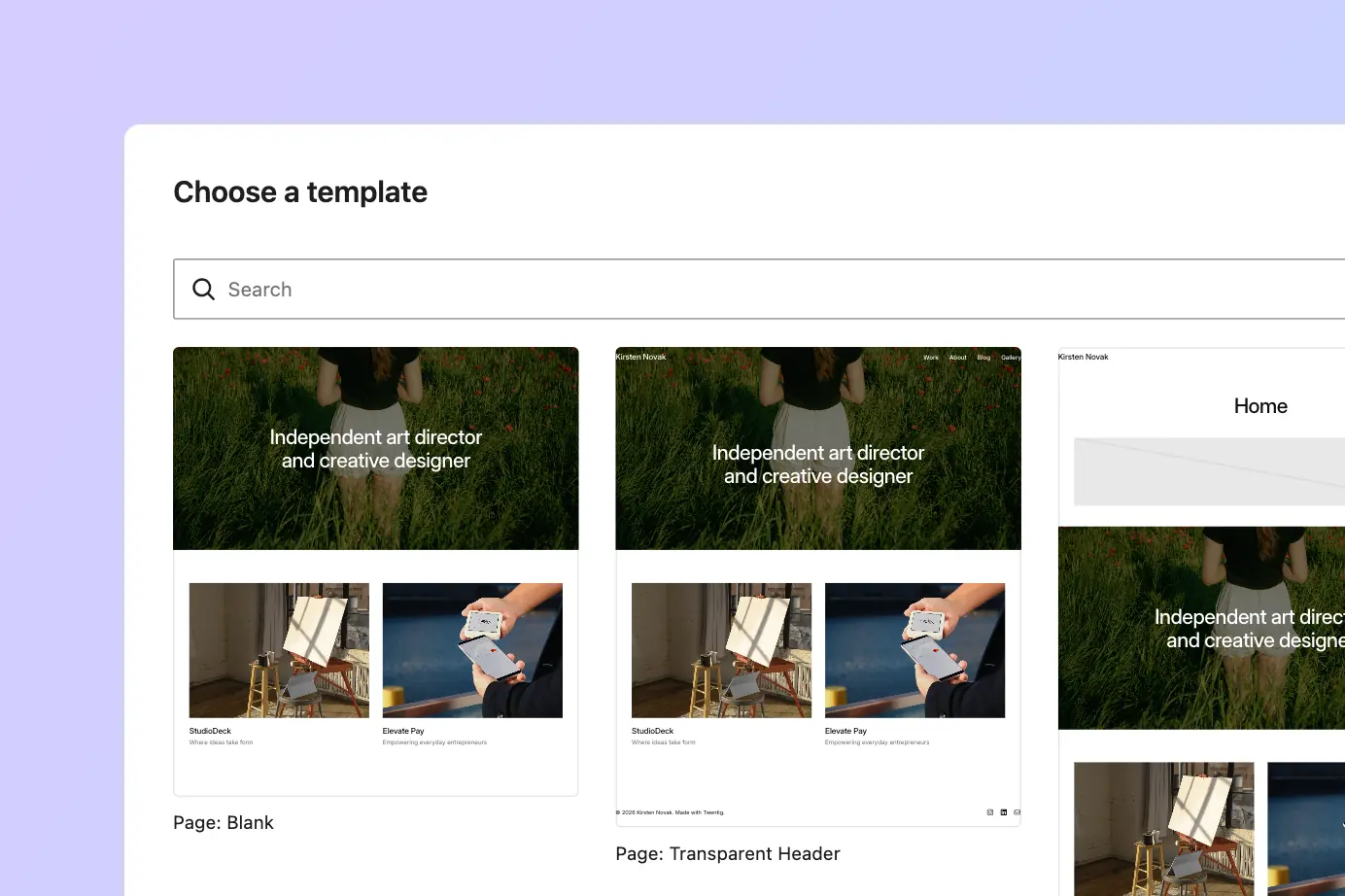
Page templates in WordPress let you easily change the structure and appearance of your pages. In Twentig One, we’ve designed several page templates to give you maximum design flexibility — from clean, minimal layouts to immersive, full-width hero sections.
Whether you’re creating a business site, a portfolio, or a landing page, choosing the right template helps you build professional layouts easily. Twentig One provides four distinct page templates to suit different design needs:
- Default template — A clean layout with a header, footer, and an empty content area, giving you complete creative freedom to design your page.
- Page with Title — Displays the page title and featured image for classic content pages.
- Transparent Header — Makes the header background transparent, allowing your hero section to appear seamlessly behind it.
- Blank — Removes the header and footer entirely for total design control.
In this article, we’ll walk you through each page template and explain how to use them.
Table of contents
Understanding Twentig One page templates
Default page template
Most themes automatically display the page title at the top of each page, which can limit your design flexibility. The Default template in Twentig One doesn’t show the page title by default, giving you a clean starting point to design your layout. Without a preset title, you can freely position your main heading — for example, place it inside a colored Group block or overlay it on an image using the Cover block.
This template is great if you want to begin your page with a custom hero section. Because it doesn’t include a page title, you’ll need to add your own Heading block and set it to H1.
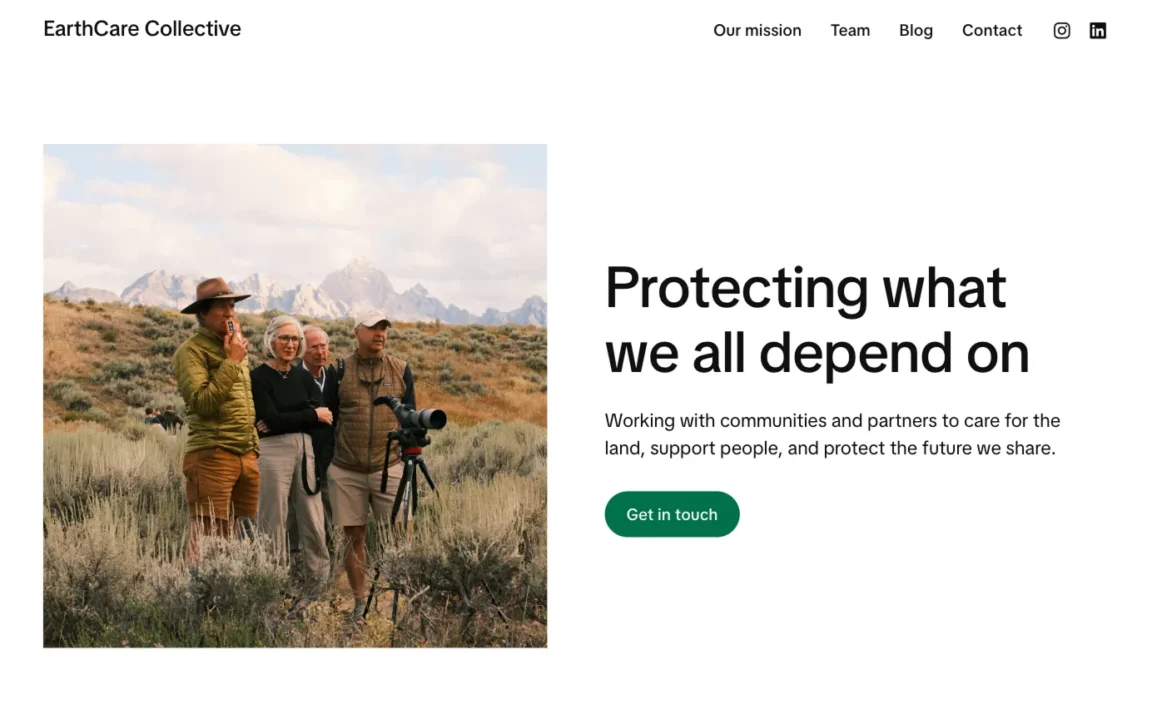
Page with Title template
If you prefer a ready-to-use layout that automatically displays your page title and featured image (if you’ve set one), choose the Page with Title template.
This template is ideal for simple content pages such as an About, Contact, or Privacy Policy page — anywhere you need straightforward information with minimal design overhead. When you add a featured image from the sidebar settings, it will appear prominently above your content, adding visual interest to your layout.
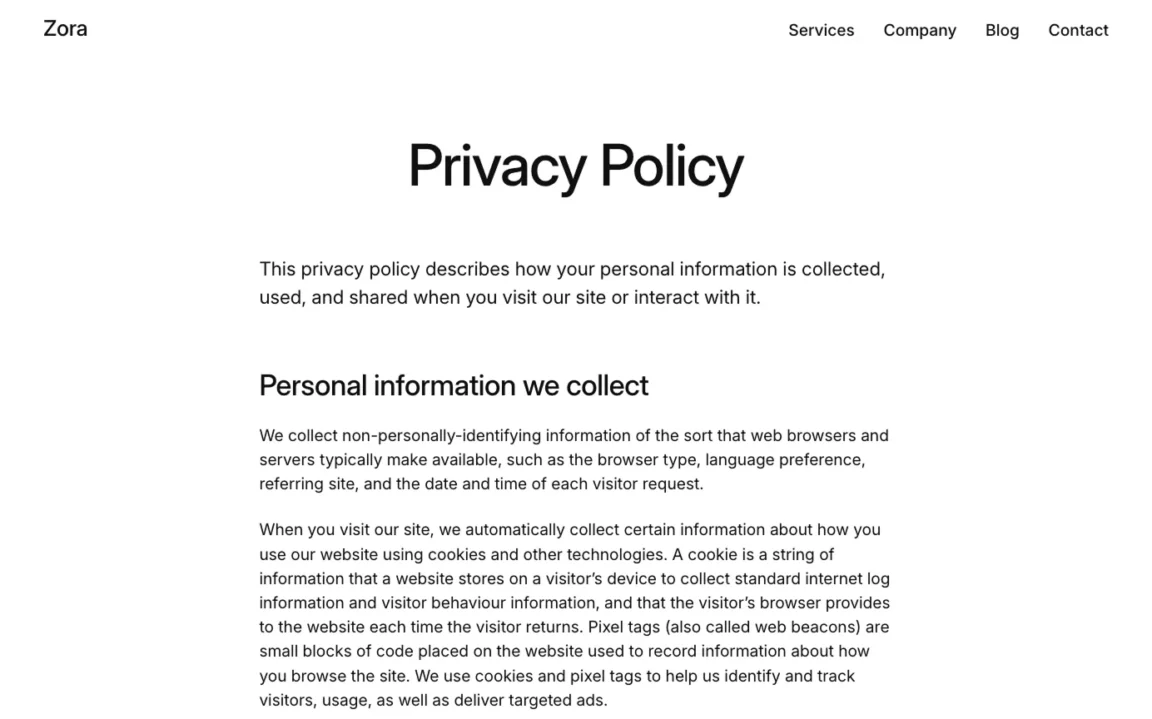
Transparent Header template
The Transparent Header template makes your site header background transparent, allowing your hero image or top section to appear directly behind the navigation for a seamless, modern look. This layout creates a smooth visual transition between the header and the top of your page, whether it’s a simple title section or an eye-catching hero image.
Like the Default template, you’ll need to manually add your own Heading block (H1) since no page title is displayed automatically.
For more details, visit our tutorial: How to make a transparent header in WordPress.
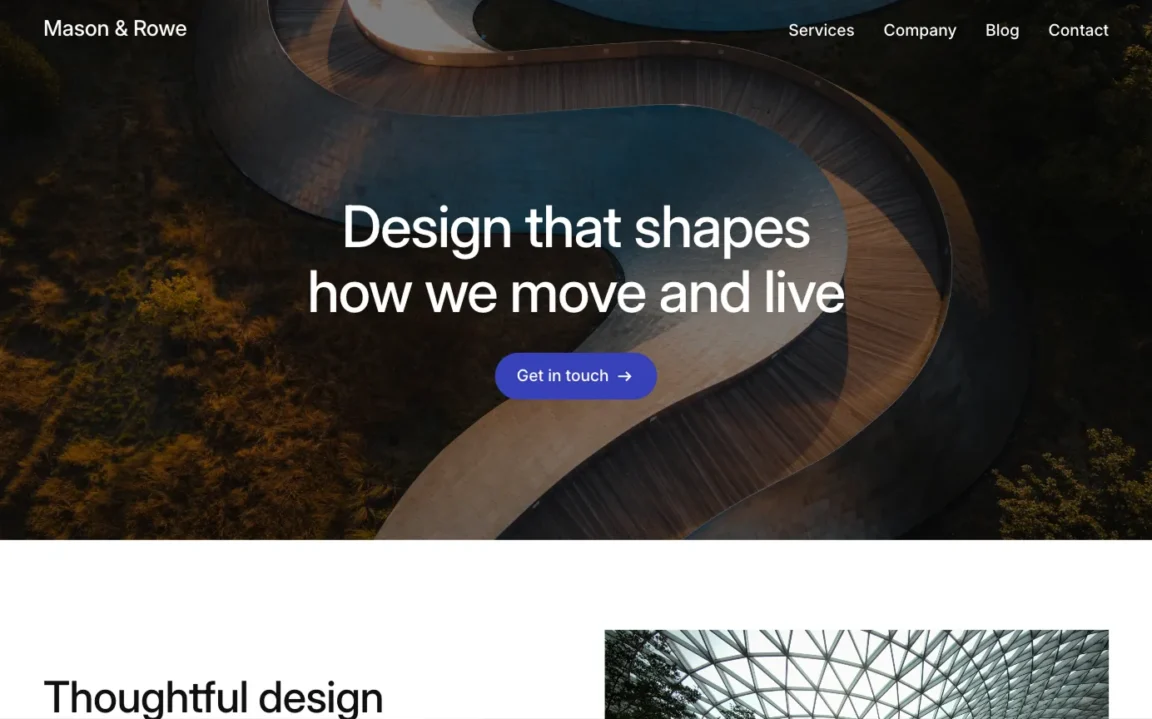
Blank template
The Blank template removes everything — including the header, footer, and title — leaving you with a completely empty canvas. It works perfectly for creating landing pages, link in bios, coming soon pages, or one-page websites that require complete design freedom.

How to change the page template in WordPress
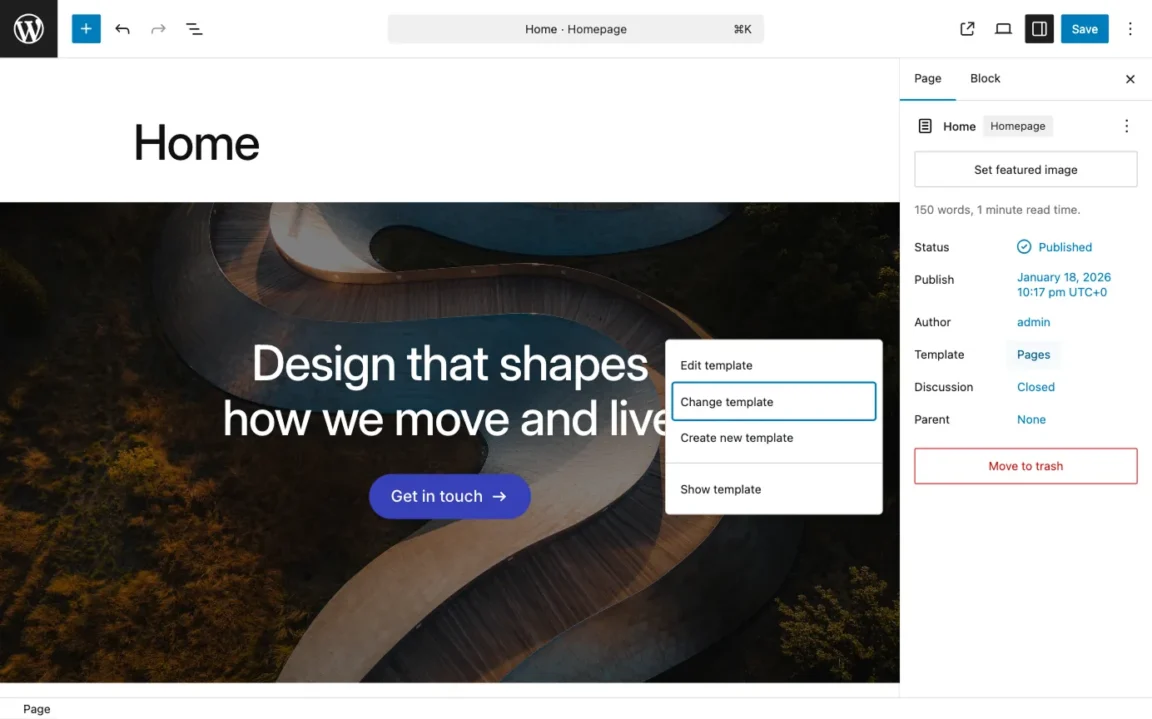
Now that you know what each template offers, let’s look at how to apply them to your pages. Changing a page template in the WordPress block editor takes just a few steps:
- Open your page in the WordPress block editor.
- Click the Settings
 icon to open the sidebar.
 - Make sure you’re on the Page tab.
- Under Template, click the link showing the current template name (
Pagesby default). - Click Change template.
- Select your preferred template from the available options.
- If you want to preview your page with the template applied directly in the editor, enable Show template in the dropdown.
- Click Save or Publish.
Your content will remain intact when you switch templates, so feel free to experiment and find the best fit for each page.
How to edit page templates in the WordPress Site Editor
You can customize Twentig One templates directly in the WordPress Site Editor. For example, you might want to change the title alignment or adjust the featured image width in the Page with Title template. Changes you make to a template will affect all pages using it.
To edit a page template:
- In your dashboard, go to Appearance > Editor.
- Click Templates in the left panel.
- Select the page template you want to modify (for example, Page with Title). It will open in the editor.
- Customize the template layout using the block editor.
- Click Save when done.
If you ever want to undo your customizations, open the template again, click the three dots  next to its name, and select Reset. This will restore the template to the theme’s default layout.
FAQs about WordPress page templates
Which page template should I use for my homepage?
For a homepage, the Default template or Transparent Header template typically work best. The Default template gives you complete freedom to design a custom hero section, while the Transparent Header template creates a modern, immersive look with your navigation overlaying the top of your page. Both options provide the flexibility needed for engaging homepage designs.
Can I use different page templates on the same website?
Absolutely. In fact, mixing templates throughout your site is common. For example, you might use the Transparent Header template for your homepage, the Default template for your About page, the Page with Title template for your Privacy Policy page, and the Blank template for a landing page. Each page can have its own template based on its purpose and design needs.
Can I switch page templates after adding content to my page?
Yes, you can safely change page templates at any time without losing your content. When you switch templates, all the blocks and content you’ve added remain intact — only the surrounding structure (header, footer, and title display) changes. Feel free to experiment with different templates to find the best layout for your page.
Why isn’t my featured image showing up on my page?
Featured images behave differently depending on the template you’re using. The Page with Title template automatically displays your featured image above the content. However, the Default, Transparent Header, and Blank templates don’t show the featured image automatically — you’ll need to manually add it to your page using an Image or Cover block if you want it to appear.
Can I create my own custom page templates in WordPress?
Yes, you can create custom page templates in the WordPress Site Editor. Go to Appearance > Editor, click Templates, then click the Add New Template button. Select the Custom template option at the bottom and build your template from there. Your custom templates will appear alongside Twentig One’s built-in templates when you change a page template.
Start building with Twentig One page templates
By understanding Twentig One’s page templates, you can make the most of the theme’s flexibility to create pages that look great and suit your needs. Whether you’re crafting a simple content page or a custom homepage, these templates give you the freedom to design with ease.
Ready to get started? Try experimenting with Twentig One’s built-in templates to see which layout works best for your page. Combined with Twentig’s enhanced blocks and ready-made patterns, you have everything you need to build professional pages quickly and confidently.
